Filter
Filters let you find rows in a table without writing a query. TablePlus builds a SELECT query with a WHERE condition from your filters, runs it, and shows the results in the Data tab.
Row filters
To show the filters, click Filters at the bottom of the table, or press ⌘ + F.1
Each filter has a column, an operator, and a value:
- Choose the column from the first menu (
⌘ + ←). Choose Any column to search in all columns, or Raw SQL to type your own condition, such astotal > 100 AND status = 'paid'. - Choose the operator from the second menu (
⌘ + →). - Enter the value and press
Return, or click Apply.
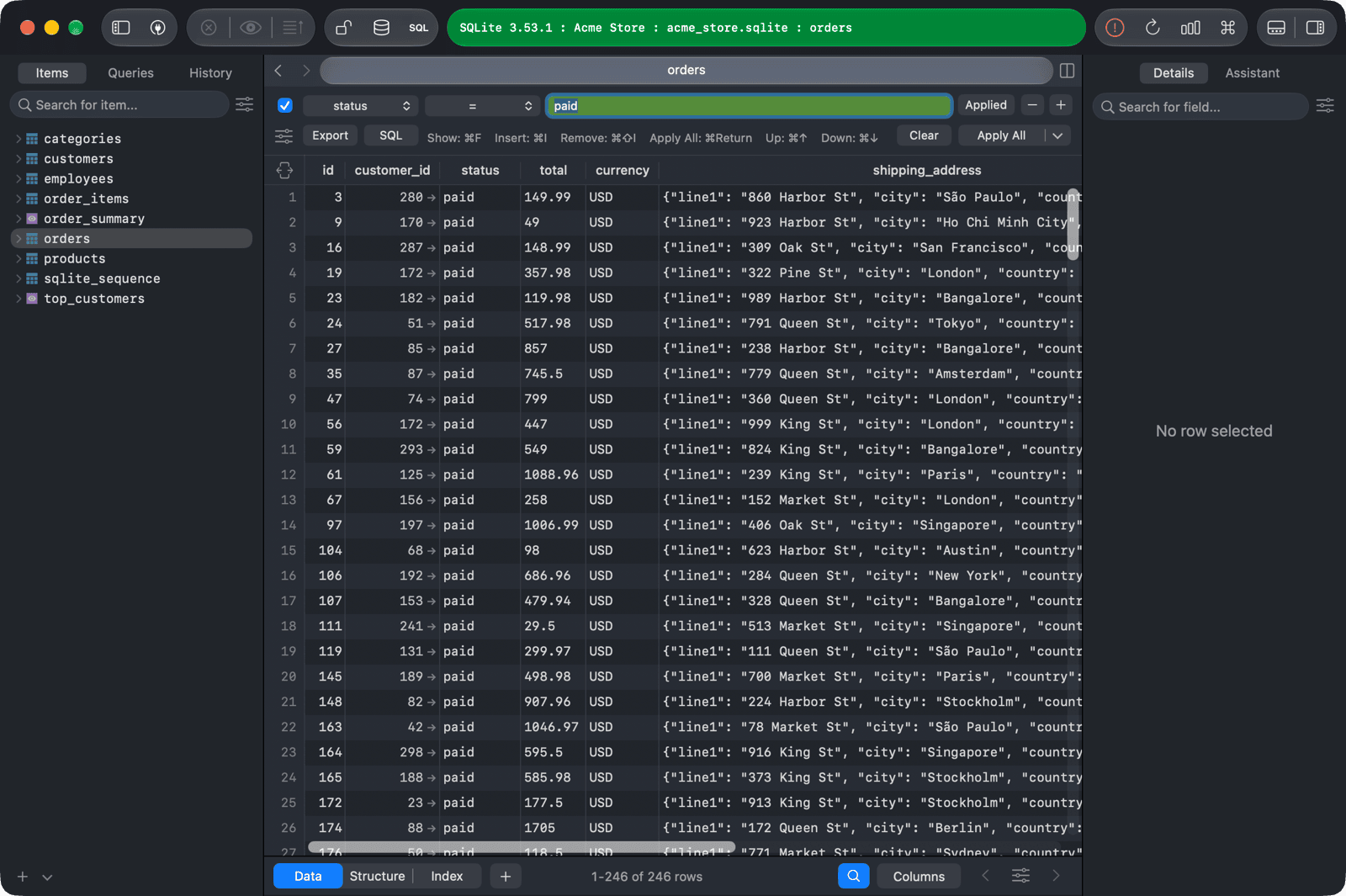
When a filter is applied, its button changes from Apply to Applied, so you can see at a glance whether the table is filtered.
Operators
The operators depend on your database. For SQLite they are:
| Operators | Value |
|---|---|
=, <>, <, >, <=, >= |
A single value |
IN, NOT IN |
A list of values, such as 1, 2, 3 |
IS NULL, IS NOT NULL |
No value needed |
BETWEEN, NOT BETWEEN |
Two values, such as 1 AND 100 |
LIKE |
A pattern, such as %@example.com |
Contains, Not contains |
Text anywhere in the value |
Has prefix, Has suffix |
Text at the start or end of the value |
PostgreSQL also has ILIKE, and case-insensitive versions of Contains, Not contains, Has prefix, and Has suffix.
Multiple filters
- To add a filter, click the + button on the right of a filter, or select it and press
⌘ + I. The new filter starts as a copy of the current one. - To remove a filter, click the - button on the right of the filter, or select it and press
⌘ + Shift + I. - To apply several filters together, tick the checkbox on the left of each filter (
⌘ + B), then click Apply All or press⌘ + Return. By default the filters are combined withAND. Click the arrow next to Apply All and choose Apply All Checked Filters with OR to combine them withOR.
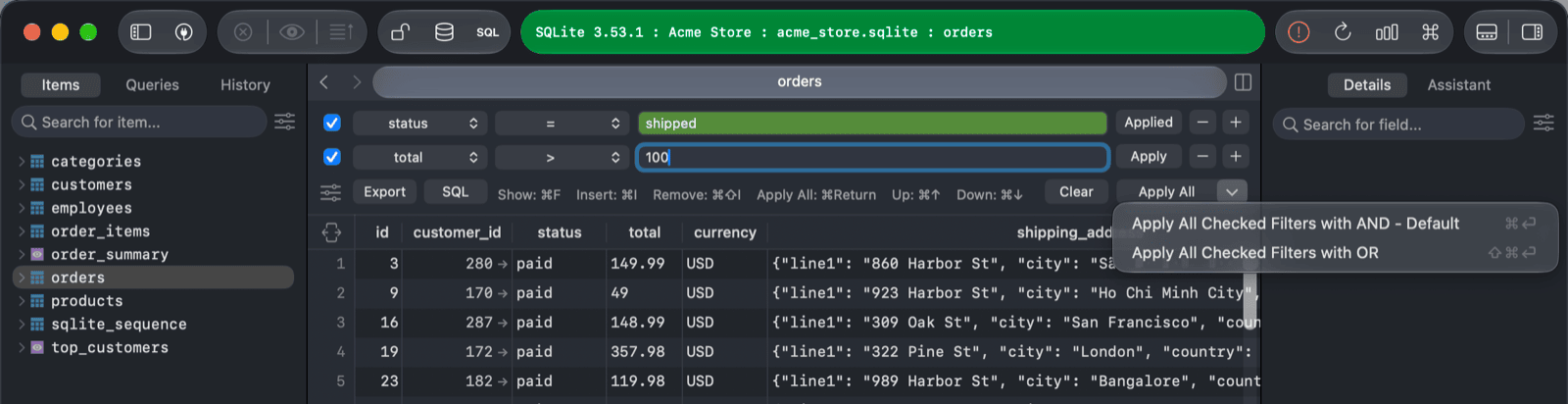
More filter actions
- To show the table without filters, click Clear.
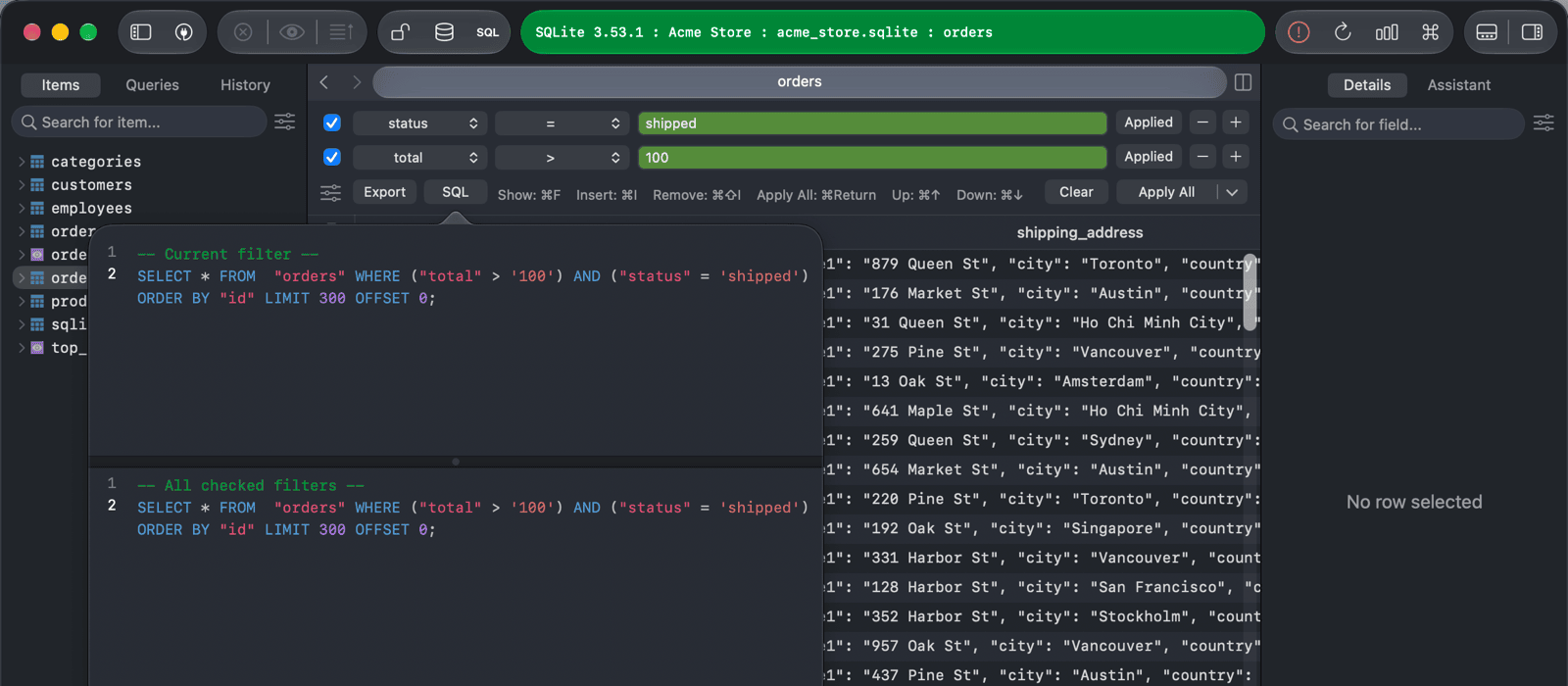
- To see the generated SQL, click SQL. The popover shows the query for the current filter and for all checked filters.
- To export the filtered rows, click Export.
- To hide the filters, press
Esc(twice if the value field has text), or click Filters again.
Quick filters
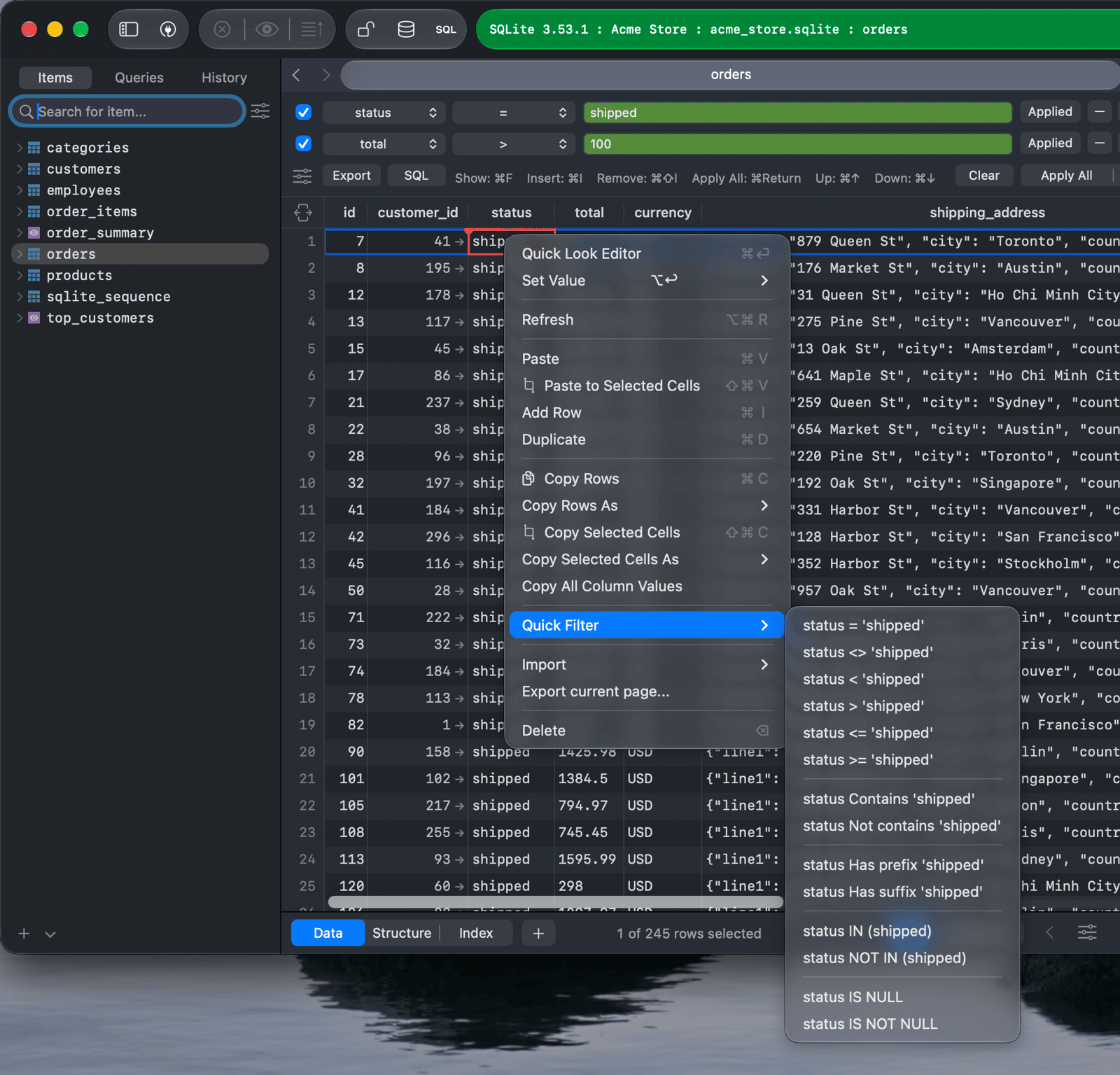
You can also start a filter from the table:
- Right-click a column header and choose Filter with column.
- Right-click a cell and open Quick Filter to filter by the cell's value, for example
status = 'shipped', Contains, Has prefix,IN, orIS NULL. - Click the foreign key arrow in a cell to open the referenced table, filtered to the referenced row.
Filter settings
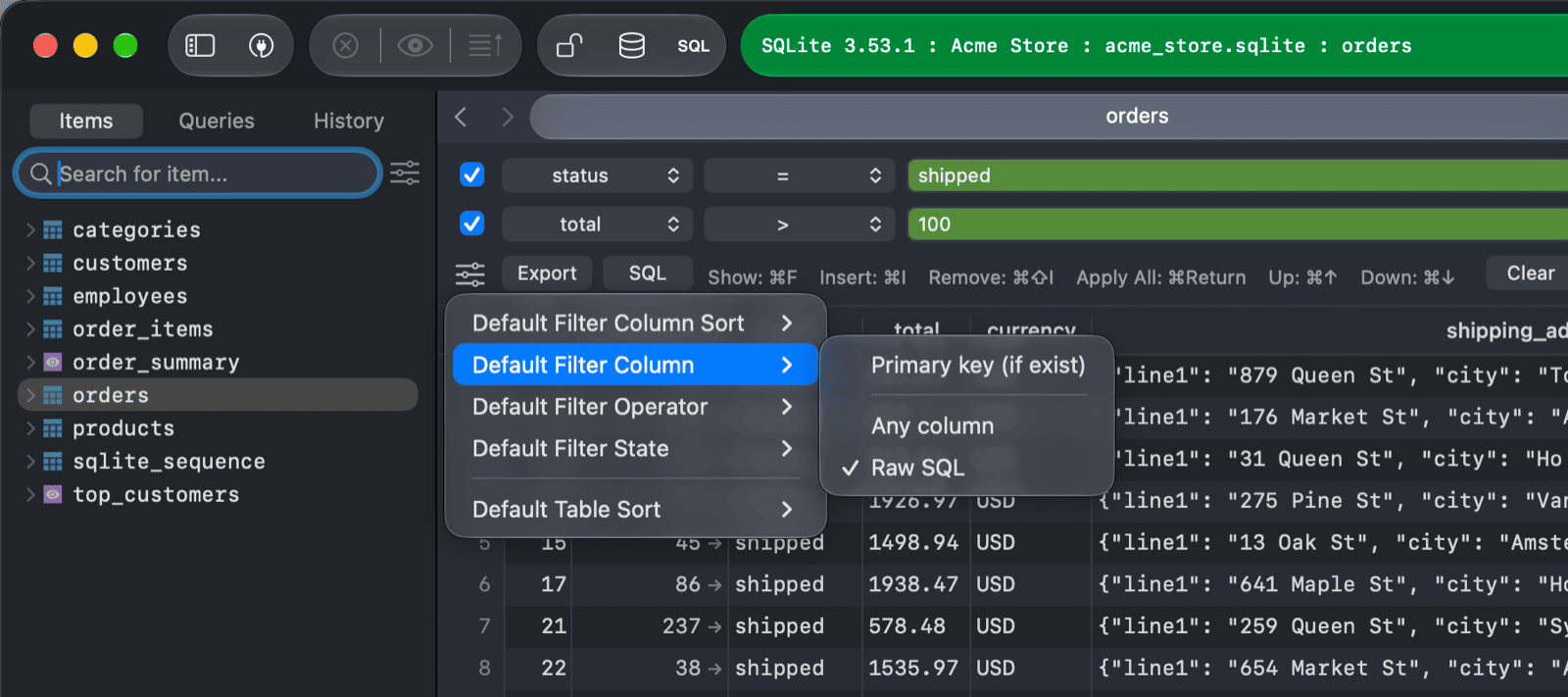
Click the settings button next to the filters to change the defaults:
- Default Filter Column Sort: list the columns By Name or By Ordinal Position.
- Default Filter Column: start new filters with the Primary key (if exist), Any column, or Raw SQL.
- Default Filter Operator: start new filters with
=or Contains. - Default Filter State: Remember the last state of the filters for each table, Always show them, or Always hide them.
- Default Table Sort: Do not sort, or sort by the primary key in ascending or descending order.
Column filter
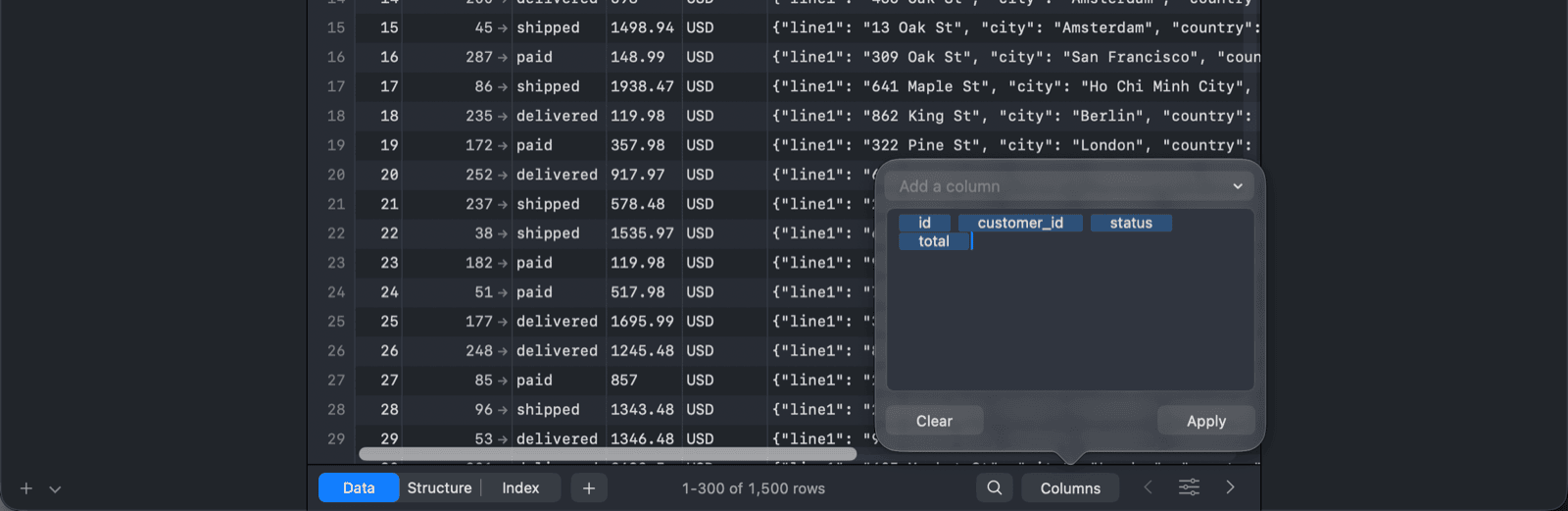
The column filter shows only the columns you choose.
- Click Columns at the bottom of the table, or press
⌥ + ⌘ + F. - Type the column names (comma-separated) or pick them from the Add a column menu, then click Apply.
To show all columns again, open the column filter, click Clear, then click Apply. You can also right-click a column header and choose Hide this column or Show all columns.
-
On Windows and Linux, use
Ctrlinstead of⌘. ↩︎