MCP Server
TablePlus has a built-in MCP (Model Context Protocol) server. With it, AI tools such as Claude Code, Codex, or any other MCP client can list your saved connections, open them, and run queries through TablePlus. Custom agents in the LLM Plugin use the same server to reach your database.
The server runs inside TablePlus on your Mac. Clients connect with an access token, and you decide what each token is allowed to do and which connections it can see.
Turn on the server
- Open Settings > MCP.
- Check Enable MCP Server.
The status line shows MCP Server is Running on port: 51003 (or the port you chose) and the number of connected clients. Once enabled, the server starts every time TablePlus opens.
You can also open this pane from Open Anything: press ⌘ + P and choose MCP Server.

Server options
| Option | Description |
|---|---|
| Preferred Port | The port the server listens on. The default is 51003. Use a port between 32000 and 61000. |
| Allow remote access (TLS) | Lets other machines connect over HTTPS. By default the server only accepts connections from your own Mac. |
| Export Certificate… | Saves the server's self-signed TLS certificate (tableplus-mcp.pem). Install it on the remote machine so it trusts the server. Available when remote access is on. |
| Approval needed for unsafe query | On connections in Silent Mode, asks you before a client runs a query that changes data or structure. On by default. See Query approval. |
| Auto-generate Access Token for tableplus-mcp | Lets the tableplus-mcp command connect without a token you create yourself. On by default. |
Changing the port, remote access, or the auto-generate option restarts the server.
Set up a client
Under Client Setup, click Add to Claude Code, Add to Codex, Add to Grok Build or Add to Antigravity to add TablePlus to a coding agent installed on your Mac. Then restart the agent. Click Others… for Cursor, VS Code (GitHub Copilot), Cline, Kilo Code, OpenCode, Devin Desktop, Kiro, GitHub Copilot CLI, Factory Droid and Augment Code. Once an agent has TablePlus, its button changes to Remove from …. If the agent still runs TablePlus from an old location, for example after you moved the app, the button reads Update in ….
To set up any other client by hand, click Manual Setup… and choose:
- Manual: the path to the
tableplus-mcpcommand, for any client that starts a local (stdio) MCP server. - HTTP Server: the endpoint (for example
http://127.0.0.1:51003/mcp) for clients that connect over Streamable HTTP. These clients send an access token in theAuthorization: Bearer <token>header.
tableplus-mcp is a small command inside the TablePlus app bundle (TablePlus.app/Contents/MacOS/tableplus-mcp). It forwards the client's requests to the running server. If TablePlus isn't running, it opens TablePlus in the background first. The MCP server must be enabled.
If you turn off Auto-generate Access Token for tableplus-mcp, you can't add agents with one click. Use Manual Setup… instead: its Manual command includes a TABLEPLUS_MCP_ACCESS_TOKEN variable. Replace YOUR_ACCESS_TOKEN with a token you created.
Access tokens
Every client needs an access token. The token decides what the client can do:
| Permission | What the client can do |
|---|---|
| Read Only | List and open connections, and run read-only queries such as SELECT. Other queries are rejected. |
| Read & Write | Everything in Read Only, plus run any query, including queries that change data or structure. |
| Full Access | All permissions. |
Create a token
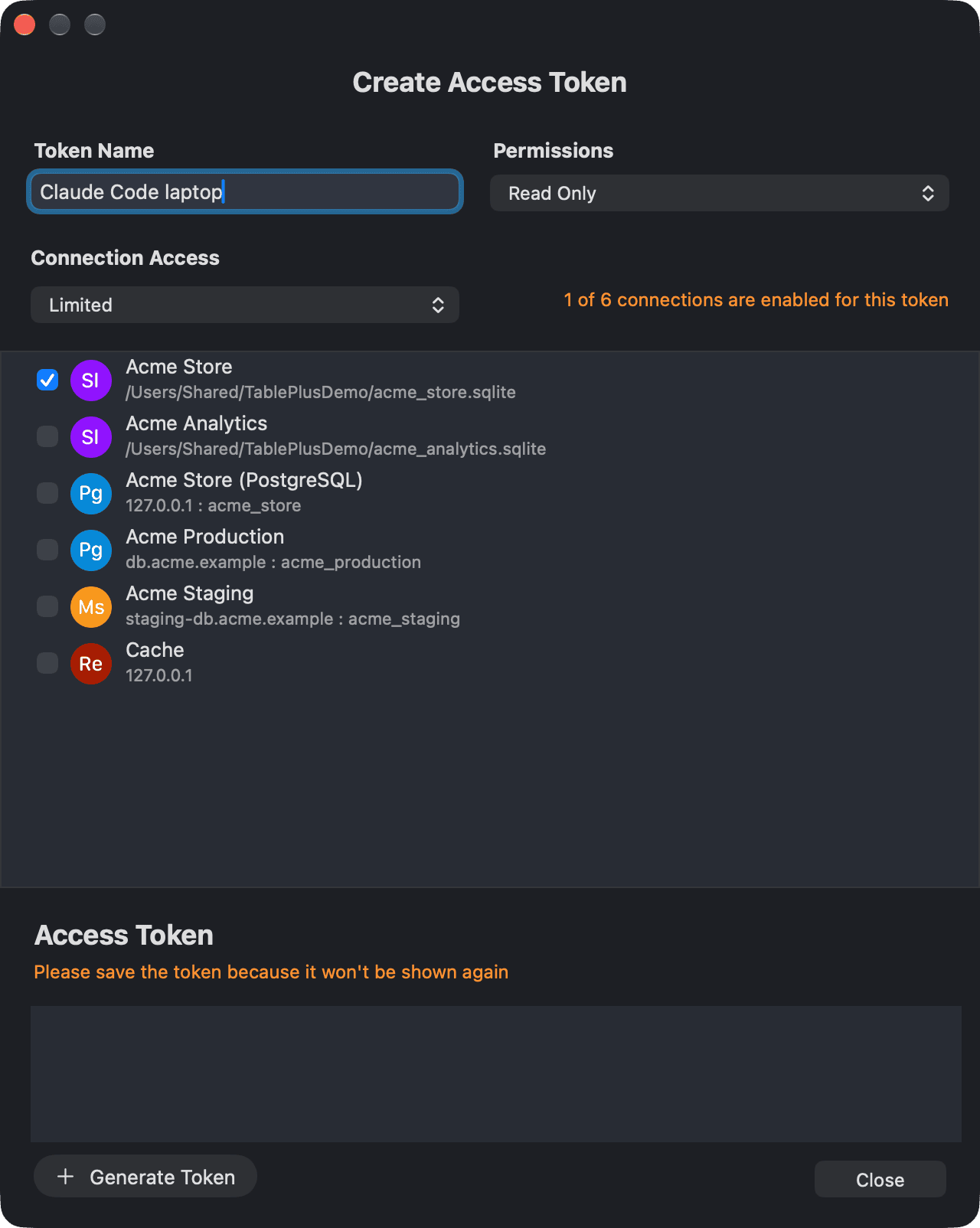
- In Settings > MCP, click Add below the token list.
- Enter a Token Name, for example the name of the client or machine.
- Choose the Permissions.
- Under Connection Access, choose Allow All to give access to every saved connection, or Limited and check the connections (or connection groups) the token can use.
- Click Generate Token.
Copy the token right away. TablePlus shows its value only once.
Manage tokens
The token list shows each token's name, prefix (the first characters of the token), permissions, status, and when it was created and last used.
- Double-click a token to see its details.
- Revoke disables a token. Clients that use it are disconnected, but the token stays in the list as Revoked.
- Delete removes the token from the list. Clients that use it are disconnected.
Tokens are stored in your macOS Keychain. The token that TablePlus generates automatically for tableplus-mcp doesn't appear in the list.
What clients can do
Clients get these tools:
| Tool | Description |
|---|---|
list_connections |
List the saved connections the token can access. |
list_open_connections |
List the connections that are open in TablePlus. |
open_connection |
Open a saved connection, in a tab or in a new window. |
disconnect |
Close a connection, or one of its databases. |
execute_read_query |
Run a read-only statement or script. |
execute_query |
Run any statement or script. Needs Read & Write or Full Access. |
A query can run for up to 300 seconds. Queries run in the connection's workspace, so they appear in its console log.
Clients can also read your saved queries, the query history of each connection, and your metrics boards. The query history isn't available when your license owner has turned it off.
Query approval
Your MCP client may ask you before a tool runs. TablePlus marks execute_read_query as read-only and execute_query as a tool that can change data, so a client such as Claude asks you to allow each execute_query call, unless you have turned its approval prompts off. Not every client asks.
TablePlus also confirms queries that change data or structure, whatever the client does:
- On a connection in Silent Mode, when Approval needed for unsafe query is on, TablePlus shows the query in an Approve AI Agent Query sheet. Click Allow to run it or Deny to reject it.
- On a connection in another safe mode, the safe mode asks instead, so you confirm the query or enter the database password.
TablePlus comes to the front when it needs you to confirm a query.
With Approval needed for unsafe query off, a token with Read & Write permission can change data on a connection in Silent Mode without TablePlus asking. Use Read Only tokens, or limit tokens to the connections they need, to keep a client from changing data.
Activity
Click Activity in Settings > MCP, or choose MCP Activity in Open Anything, to open the Integrations Activity window.

Use the View control in the toolbar to switch between:
- Activity: a log of every request, with its status, time, category, token, client address, connection, action, and query. Select a row to see its details. Filter the log with the search field, the time range (Last 24 hours, Last 7 days, Last 30 days, All time), and the token menu. Click Export CSV to save the log, or Clear Activity to delete entries older than 30 or 7 days, or all of them.
- Client: the clients that are connected now, with their name, version, token, address, and when they connected and were last active. Select clients and click Disconnect to end their sessions and cancel their running requests.
Remote access
To let an MCP client on another machine connect:
- Check Allow remote access (TLS). The server now uses HTTPS.
- Click Export Certificate… and install
tableplus-mcp.pemas a trusted certificate on the remote machine. - Create an access token for the remote client.
- Under Client Setup, click Manual Setup… and choose HTTP Server to see the endpoint, for example
https://your-mac.local:51003/mcp. Use it with the token in the client.
A remote client can reach every connection its token allows. Give remote clients tokens with the lowest permission they need and limit them to specific connections.