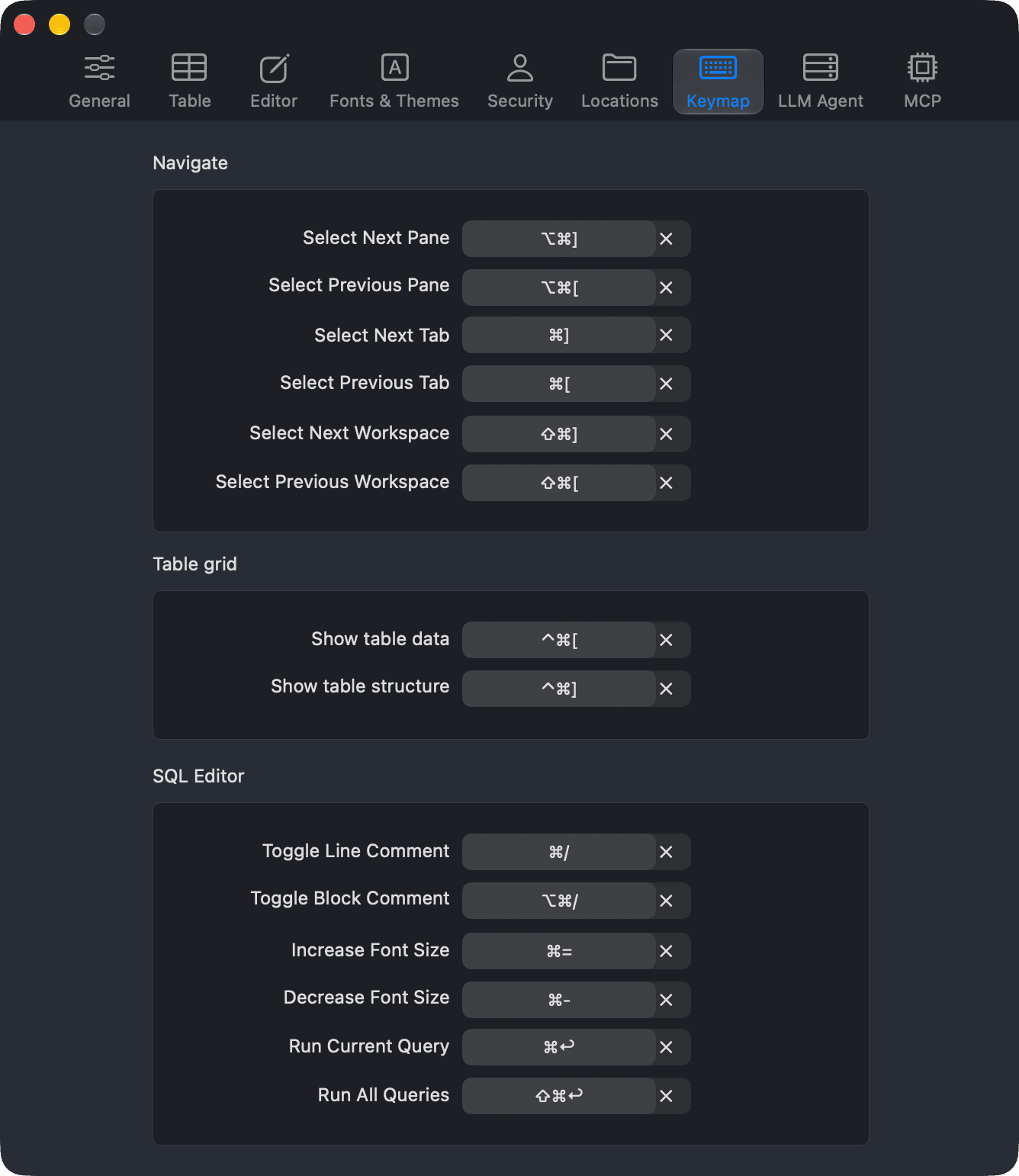
This page lists the default shortcut keys in TablePlus for macOS, grouped by where you use them.1 Most of them are also shown next to their commands in the menu bar.
You can change some shortcuts in Settings > Keymap: select next/previous pane, tab, and workspace, show table data/structure, toggle line/block comment, increase/decrease font size, and run current/all queries. See Keymap.
Preferences > Keymap
Application
Shortcut
Action
⌘ + ,
Open Settings
⌘ + N
Open the connection list (New Workspace)
⌘ + O
Open a file
⌘ + Shift + O
Open a new SQL Viewer
⌘ + ?
Report a bug or send feedback
⌘ + H
Hide TablePlus
⌘ + Q
Quit TablePlus
Workspace
Shortcut
Action
⌘ + P
Open anything
⌘ + K
Open a database
⌘ + Shift + K
Open a connection
⌘ + E
Open a new SQL query editor tab
⌘ + T
Open a new tab
⌘ + W
Close the current tab
⌘ + S
Commit changes
⌘ + Shift + P
Preview changes as SQL statements
⌘ + Shift + Delete
Discard changes
⌘ + Z
Undo
⌘ + Shift + Z
Redo
⌘ + R
Reload the workspace
⌘ + ⌥ + R
Reload the current tab
⌘ + Shift + R
Reconnect
⌘ + ⌥ + .
Disconnect
⌘ + .
Open the process list
⌘ + Shift + E
Export tables
⌘ + L
Open the Plugin Manager
Navigation
Shortcut
Action
⌘ + ]
Select the next tab
⌘ + [
Select the previous tab
⌘ + 1 to ⌘ + 9
Select the tab at that position
⌘ + ⌥ + ]
Select the next pane
⌘ + ⌥ + [
Select the previous pane
⌘ + Shift + D
Split the pane to the right
⌘ + Shift + ]
Select the next workspace
⌘ + Shift + [
Select the previous workspace
⌘ + Shift + \
Show all workspaces
⌘ + ⌃ + ←
Go back
⌘ + ⌃ + →
Go forward
⌘ + ⌃ + [
Show table data
⌘ + ⌃ + ]
Show table structure
Sidebars and panels
Shortcut
Action
⌘ + 0
Toggle the left sidebar
Space
Toggle the right sidebar (row detail)
⌘ + ⌃ + C
Toggle the console log
⌃ + `
Toggle the query results pane
⌘ + Shift + F
Search items in the left sidebar
⌘ + ⌃ + F
Enter or exit full screen
Left sidebar
Shortcut
Action
Space
Open the selected item
Delete or ⌘ + Delete
Delete the selected items
⌥ + Delete
Truncate the selected tables
Table data
Shortcut
Action
⌘ + I
Add a new row
⌘ + D
Duplicate the selected rows
⌘ + C
Copy the selected rows
⌘ + Shift + C
Copy the selected cells
⌘ + V
Paste rows
⌘ + Shift + V
Paste to the selected cells
Delete
Delete the selected rows
Return or Tab
Edit the selected cell
Space
Toggle the row detail in the right sidebar
⌘ + Return
Open the selected cell in Quick Look
Middle-click a cell
Open the cell in Quick Look
⌥ + Return or ⌥ + Click a cell
Open the quick edit menu (Set Value)
⌘ + ↑
Select the first row
⌘ + ↓
Select the last row
⌘ + →
Go to the next page
⌘ + ←
Go to the previous page
⌘ + F
Show the filters
⌘ + Return (in the filter bar)
Apply all checked filters
⌘ + ⌥ + F
Choose the columns to show
Esc
Deselect all rows or close Quick Look
SQL query editor
Shortcut
Action
⌘ + Return
Run the current statement (or the selection)
⌘ + Shift + Return
Run all statements
⌘ + .
Open the process list, where you can Kill the running query