Editor Basics
The SQL editor is where you write and run queries against the current database. Each SQL editor opens in its own tab, with the results below the editor.
Open the SQL editor
Use any of these:
- Click the SQL File button on the toolbar.
- Press
⌘ + E(or⌘ + Returnwhen no SQL editor is focused). - Press
⌘ + Tto open a new tab. By default, a new tab opens an SQL editor; you can change this with Command + T to open in Settings > General.1
Run queries
The run button is on the bar at the bottom of the editor, above the results.
- Run Current (
⌘ + Return) runs the selected text. If nothing is selected, it runs the statement under the cursor, which TablePlus highlights in the editor. - Run All (
⌘ + Shift + Return) runs every statement in the editor.
Separate multiple statements with a semicolon. When you run more than one statement, each result opens in its own result tab (see Split Results into Tabs).
Click the arrow next to the run button to choose Run Current or Run All, and to change the Default action of the button. Change Shortcut Keys... opens Settings > Keymap, where you can change the shortcuts for both actions.
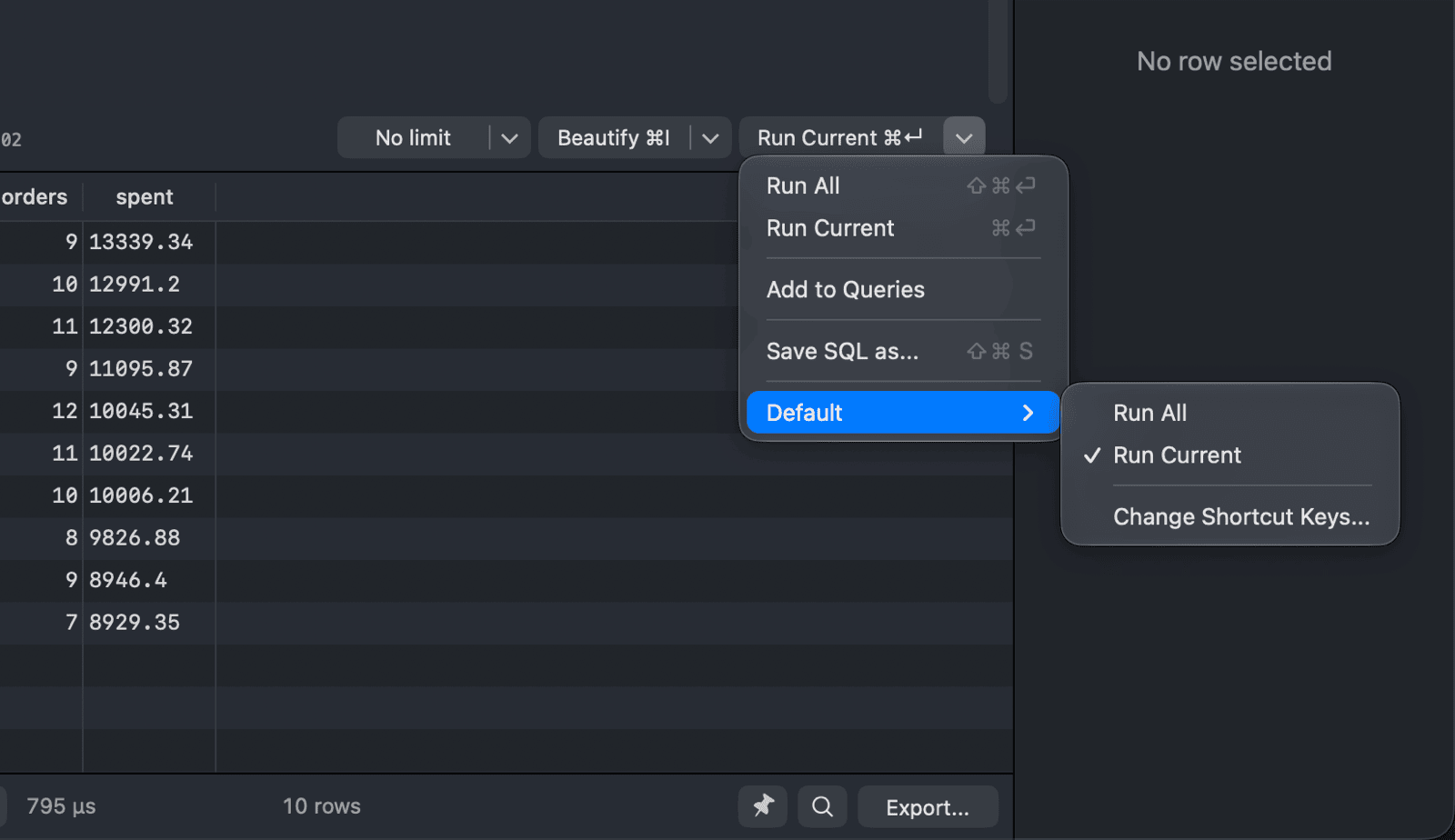
Every query you run is saved to the query history.
If the connection uses Safe Mode, TablePlus asks you to confirm (or enter your password) before it sends the queries to the server.
Limit the number of rows
For most SQL drivers, a row limit menu sits next to the run button. Choose No limit or a limit from 100 rows to 500,000 rows. TablePlus then adds a LIMIT to SELECT queries that don't have one. The limit is saved per connection.
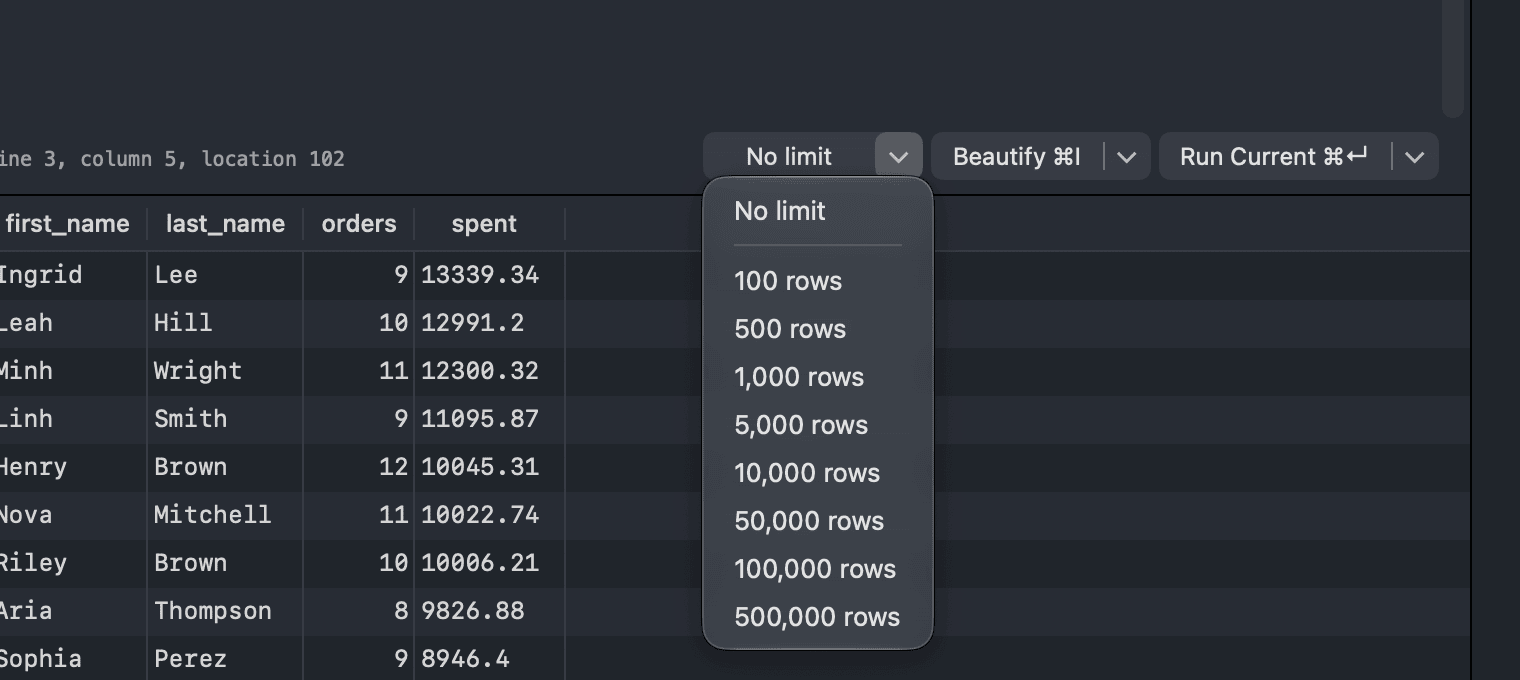
For MongoDB connections, a syntax menu replaces the row limit menu. Choose Mongo Shell (Javascript) to write shell scripts, or Mongo Command to run database commands.
Cancel a running query
While queries run, the run button turns into Cancel. Click it to stop the queries. On PostgreSQL, MySQL, MariaDB and Microsoft SQL Server, Cancel opens the process list so you can pick which server process to kill.
To stop a query on the server, open the process list: navigate to Tools > Process List (⌘ + .). It shows the running queries on the server. Select a query and click Kill. The process list is not available for every driver (for example, SQLite).
Fold statements
Click the arrow in the line number gutter next to a statement to collapse it, and click it again (or click the placeholder in the editor) to expand it. Inside a statement, lines with deeper indentation (such as an indented subquery) fold under the line above them. TablePlus remembers the folds of saved query files.
Comment out code
- Toggle Line Comment:
⌘ + / - Toggle Block Comment:
⌥ + ⌘ + /
Both are also in the editor's right-click menu and in the Edit menu.
Save queries
- To save the editor content to a file, click the arrow next to the run button and choose Save SQL as..., or navigate to File > Save As... (
⌘ + Shift + S). - To keep a query for later use, add it to your saved queries: choose Add to Queries from the same menu, or select some text, right-click and choose Add to Queries. See Query Favorite & Keyword Binding.
To control whether TablePlus restores the SQL editor content the next time you open the connection, see Customize Query Editor.
To get help from an AI model to write or explain a query, use the Assistant tab in the right sidebar. SQL in the replies has buttons to copy or run it. See LLM Plugin.
-
On Windows and Linux, use
Ctrlinstead of⌘. ↩︎