Query Favorite & Keyword Binding
Save the queries you use often in the Queries tab of the left sidebar (previously called Favorites). You can bind a saved query to keywords, then type a keyword in the SQL editor to insert the query.
Saved queries are plain .sql files, so you can also organize them in folders and share a folder with your team.
Save a query
To create a new saved query:
- Open the Queries tab at the top of the left sidebar.
- Click the + button at the bottom of the sidebar, or right-click the list and choose New > File...
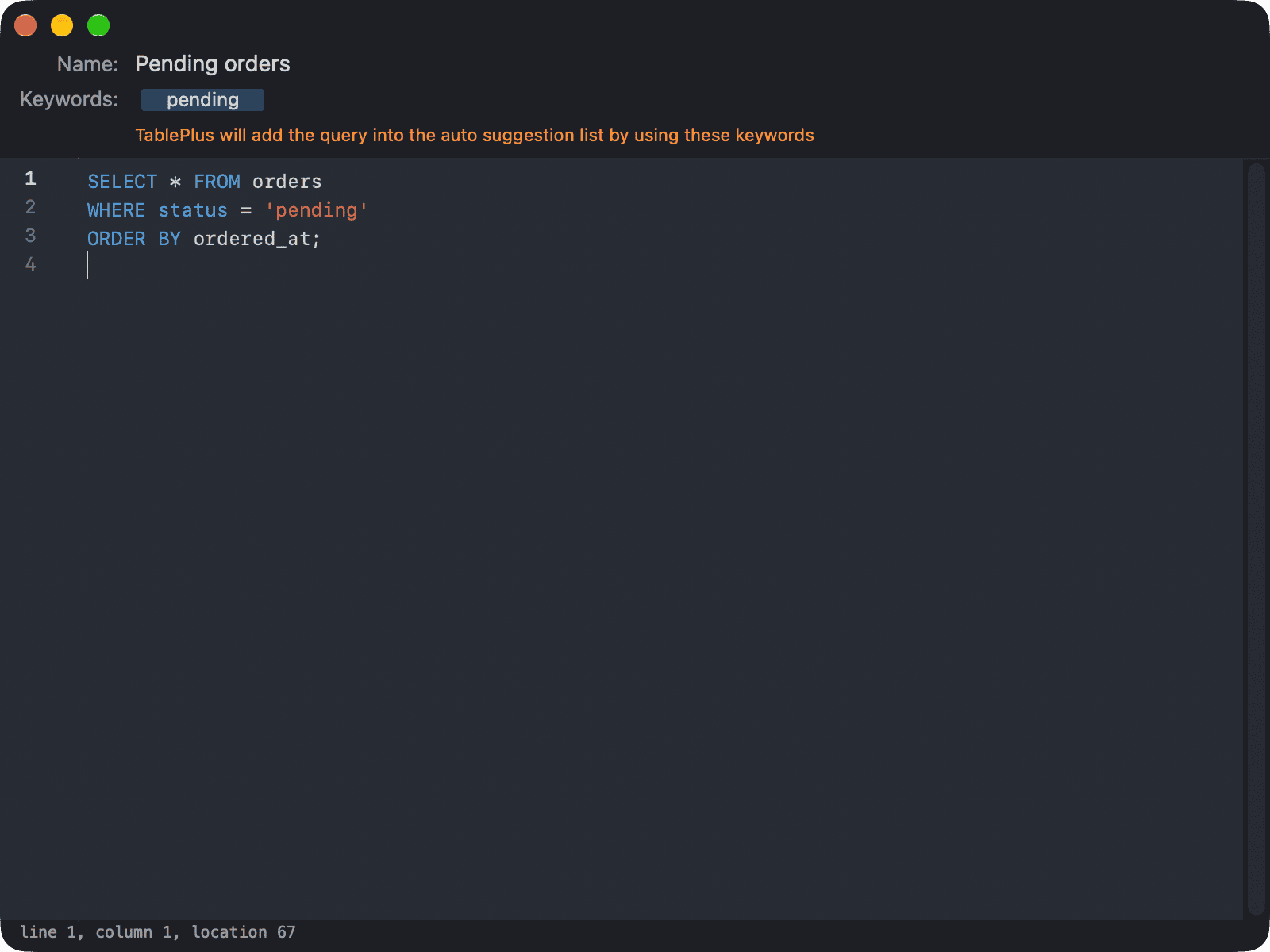
- In the editor window that opens, enter a Name, the Keywords and the query.
- Press
⌘ + Sto save, then close the window.
To save a query from the SQL editor:
- Select the query, right-click and choose Add to Queries. If nothing is selected, TablePlus saves the statement under the cursor.
- Or click the arrow next to the run button and choose Add to Queries to save the whole editor content.
Enter a name for the query. TablePlus saves it and opens it in a new tab.
To save a query from the history, right-click it in the History tab and choose Add to Queries.
Bind keywords to a query
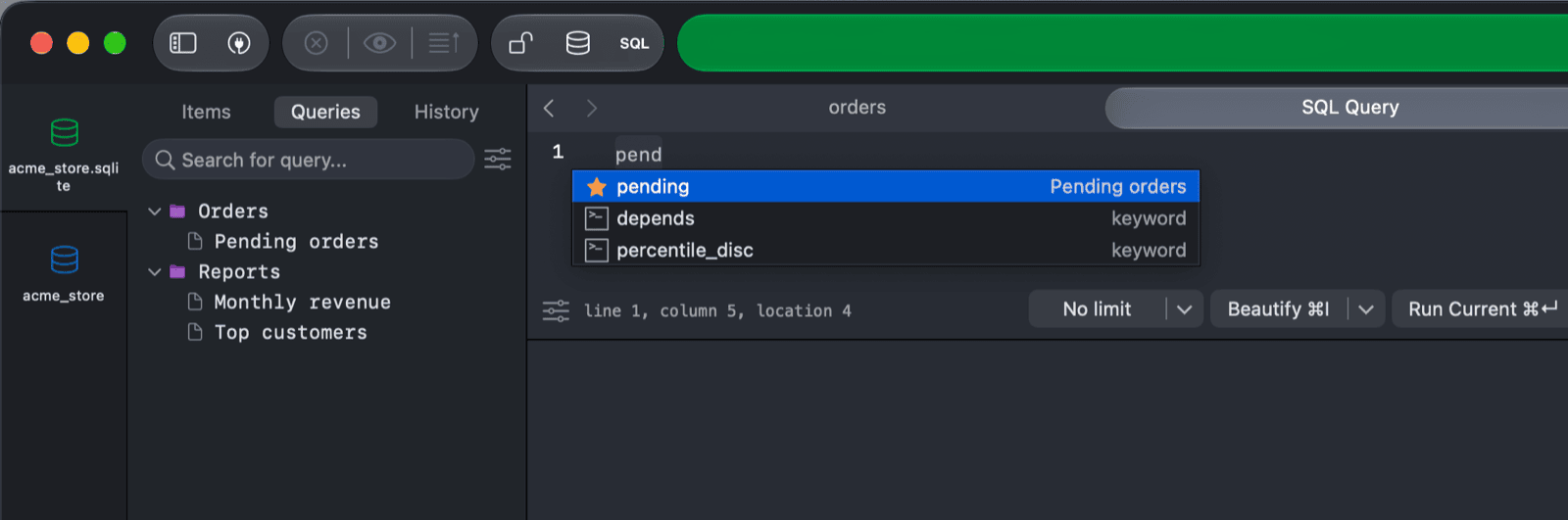
In the editor window of a saved query, enter one or more Keywords. TablePlus adds the query to the autocomplete suggestions under these keywords.
To use it, type a keyword in the SQL editor and accept the suggestion (Return or Tab). TablePlus inserts the saved query.
Use a saved query
Double-click a saved query to open it in its own SQL editor tab. If it's already open, TablePlus switches to that tab.
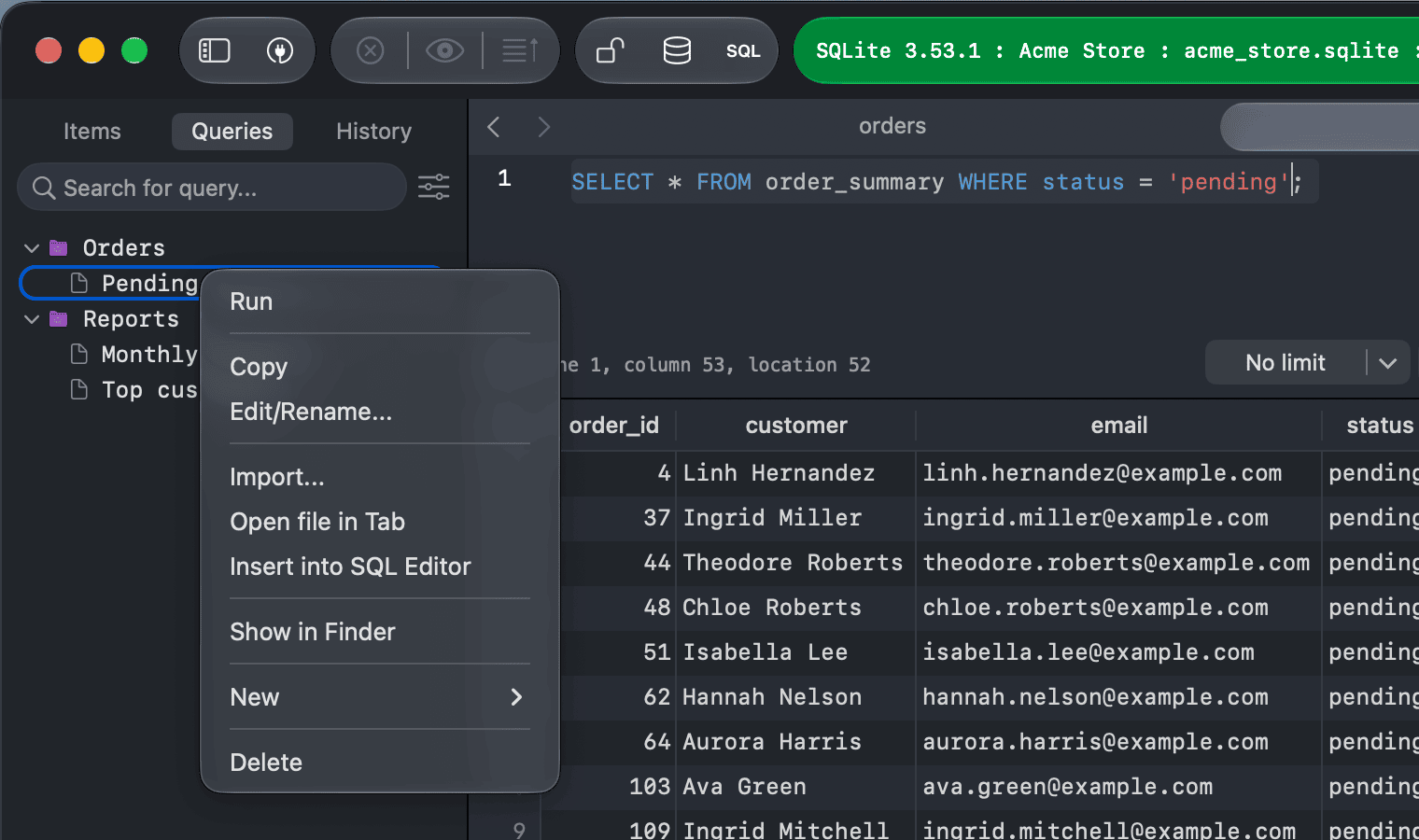
Right-click a saved query for more options:
| Option | What it does |
|---|---|
| Run | Opens the query in a tab and runs it. |
| Copy | Copies the query to the clipboard. |
| Edit/Rename... | Opens the query in a separate editor window, where you can change its name, keywords and code. Press ⌘ + S to save. |
| Import... | Runs the query file with the Import SQL Wizard. |
| Open file in Tab | Opens the query in its own SQL editor tab. |
| Insert into SQL Editor | Inserts the query into a new SQL editor tab. |
| Show in Finder | Shows the .sql file in Finder. |
| Delete | Deletes the saved query. |
When you edit a saved query in its tab, TablePlus saves your changes back to the file automatically. To turn this off, click the arrow next to the + button at the bottom of the sidebar and uncheck Settings > Auto save Queries, or turn off Automatically save queries while editing in Settings > Editor.
Organize saved queries in folders
- To create a folder, right-click the list and choose New > Folder..., then type its name.
- To move a query into a folder, drag it onto the folder.
- To rename a folder, right-click it and choose Edit/Rename...
- To delete a folder, right-click it and choose Delete.
To change the order of the list, click the arrow next to the + button and choose Sort by > Name, Date Created or Date Modified.
Add a shared folder
To use a folder of .sql files that already exists on your computer (for example a folder synced with your team), right-click the list and choose New > Add a shared Folder to Queries..., then select the folder. Its files appear in the Queries tab.