Licensing
This page explains what you can do with the free version of TablePlus, and how to buy, activate, and manage a license.
Purchase a license
TablePlus is free to download and use for as long as you need, with some limits. In the free version, you can have at most:
- 2 open tabs
- 2 open workspace windows
- 2 filters at a time
- 1 metrics board
Turning off crash reports also requires a license.
To remove the limits, purchase a license. It's a perpetual (lifetime) license that includes one year of updates. After one year from the purchase date, you can either renew the license to keep getting updates, or keep using the last build released before your license expired, without any limits, forever.
- Buy a license: https://tableplus.com/pricing
- Add more seats to an existing license: https://tableplus.com/order/extend-seats
- Renew a license: https://tableplus.com/order/renew-license
After your purchase, you'll receive your license key by email.
Activate a license
- Open TablePlus and choose TablePlus > Register license... from the menu bar. You can also click Activate on the welcome screen.
- Paste the license key from your email into License Key.
- Click Activate.
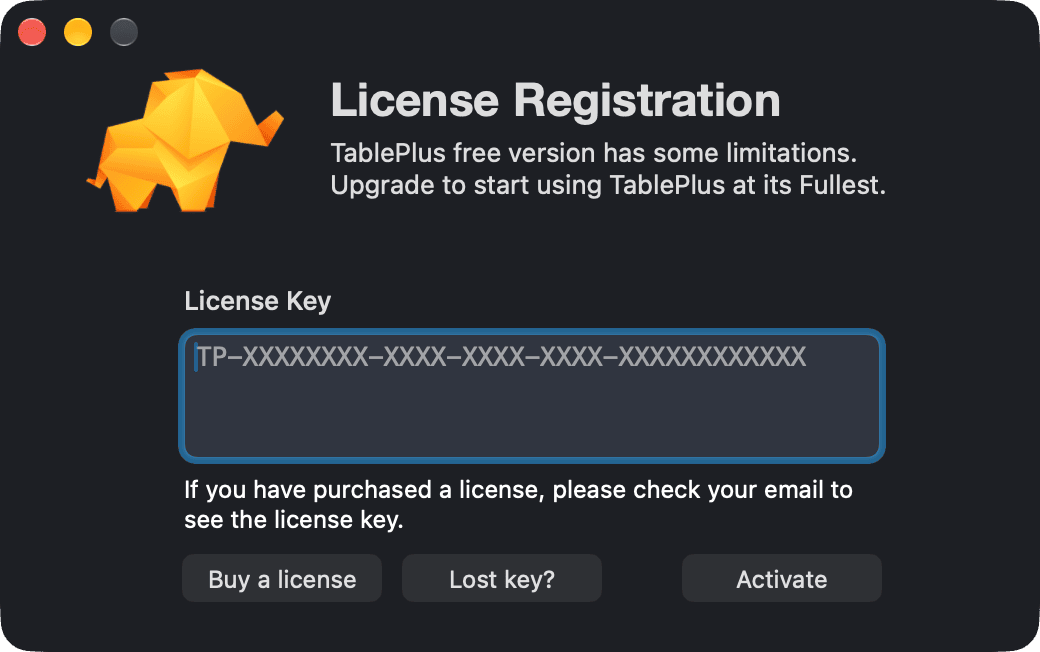
Lost your key? Click Lost Key? in Settings > License, or go to the License Manager to recover it.
View your license
After activating, choose TablePlus > Register license... again to see your license details: the email that manages the license and the date until which updates are available. In Settings > License, you can also:
- Renew the license to get more updates.
- Extend Seats to use the license on more devices.
- Open the License Manager.
- Unlink This Mac to free its seat.
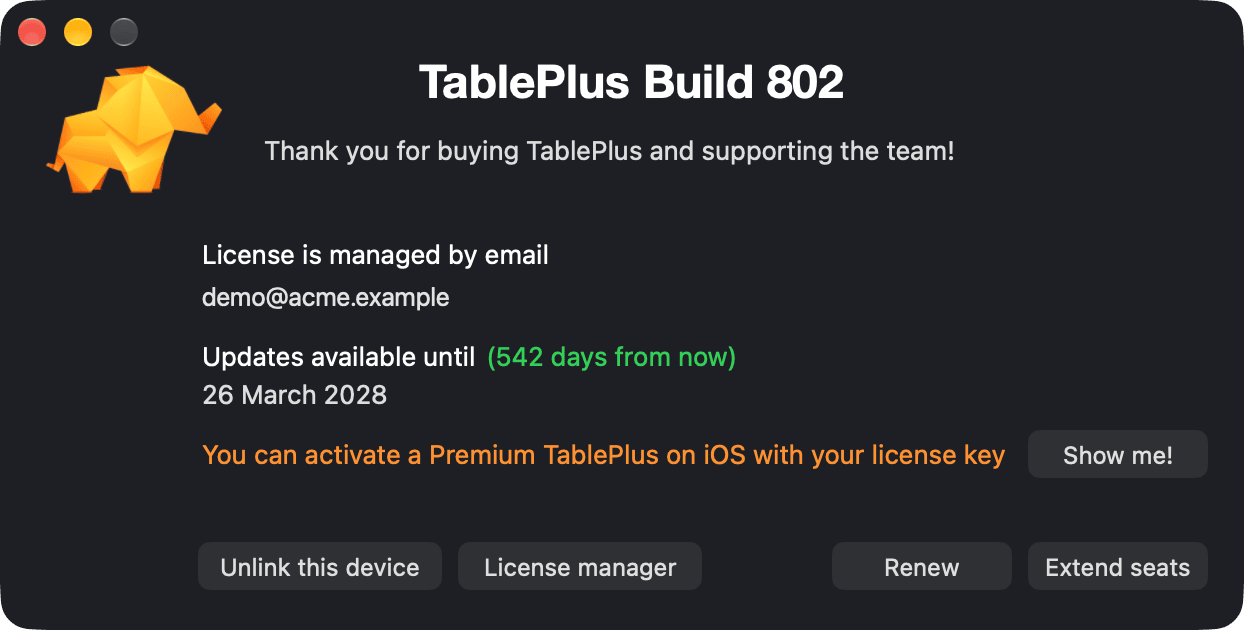
You can also use your license key to activate Premium in TablePlus for iOS.
Use multiple devices
A single-seat license lets you use TablePlus on one computer. If you have multiple devices, or several people use TablePlus, you can buy a volume license at a discount or add more seats to your existing license.
Move to a new device
To use your license on a new device, first free the seat used by the old one:
- If you still have the old device, open Settings > License (TablePlus > Register license...) and click Unlink This Mac.
- If you no longer have access to it (for example, you reformatted it), remove it in the License Manager.
Then activate the license on the new device with the same license key.
If you activate a license that has no free seats left, TablePlus shows You are out of seats. Click Manage devices to remove an old device in the License Manager, or Buy more seats.
Lost license key
If you can't find your license key, request access to the License Manager with the email you used to buy the license. You'll find all your license information there.
License Manager: https://tableplus.com/license-manager/access-link
If you also forgot the email address, send an email to [email protected] with as much information about the license and purchase as you can.
Transfer a license
To transfer the ownership of a license to another email address, use the License Manager: https://tableplus.com/license-manager/access-link
If you lost access to the license email, send a request with all the license details to [email protected], and we'll update it for you.
When the license expires
When your updates expire, TablePlus lets you know. You can renew the license to keep getting updates, or keep using the app without limits. If your license doesn't cover the build you are running, TablePlus offers Download the Old Build so you can get a build your license covers. You can also find old builds in the changelog.
Invoice
Payments are handled by Paddle.com, including invoices and taxes. After you place an order, you'll receive two emails at your registered address:
- One from TablePlus ([email protected]) with the license key.
- One from Paddle (
*@paddle.com) with the invoice.
The email from Paddle includes a link to your online invoice, where you can add your details and your company's tax information.
Taxes are charged based on your location. To learn more, see https://paddle.com/support/which-countries-does-paddle-charge-vat-for/.
For resellers
If you're a software reseller, see the reseller FAQs.