Fonts & Themes
Settings > Fonts & Themes (⌘ + ,) lets you pick a theme, add your own, and change the fonts and colors of the SQL Editor, the data table and the rest of the app.1
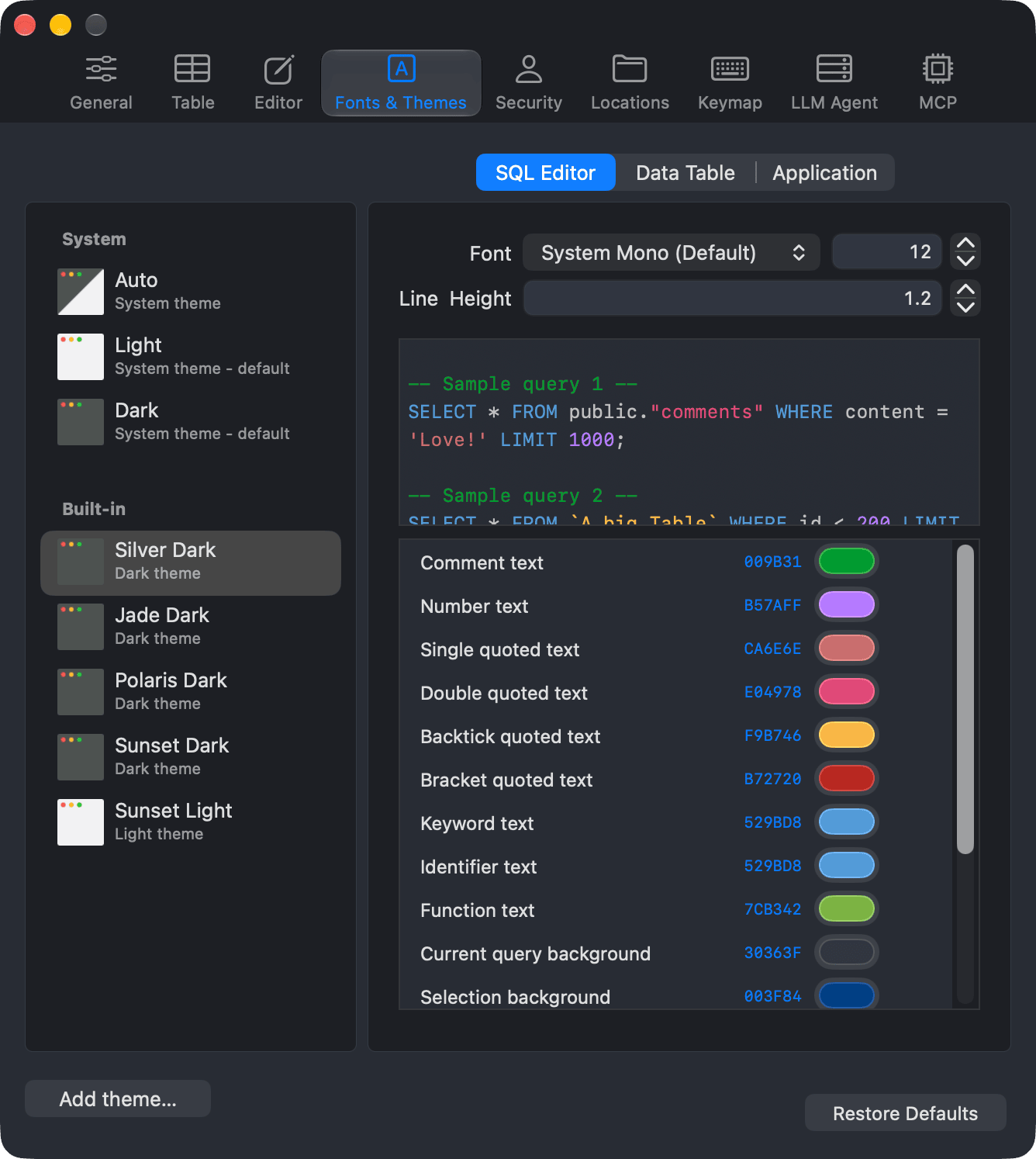
The theme list is on the left. At the top, switch between SQL Editor, Data Table and Application. Below the switch are the fonts of that part, with a live preview for the SQL Editor and the data table, and its colors are next to the theme list.
Themes
Click a theme in the list to apply it. Themes are grouped into sections:
- System: Auto, Light and Dark. Auto follows the macOS appearance and switches between your default light theme and default dark theme.
- Built-in: themes that come with TablePlus:
- Silver Dark
- Jade Dark
- Polaris Dark
- Sunset Dark
- Sunset Light
- Custom: themes you duplicated or imported.
- One section per theme repository you installed from Git.
Each theme is either a light or a dark theme. Its base decides the overall appearance of the app.
Choose the themes for Auto
Right-click a theme and choose Make default (for Auto theme). It becomes the default for its base: a dark theme is used by Auto in Dark Mode, a light theme in Light Mode. The theme list marks the current defaults with "default".
Manage themes
Right-click a theme to:
- Duplicate it into a custom theme you can rename and edit.
- Delete it (custom themes only).
- Export this theme as a JSON file, or Export all themes into a
themesfolder with one JSON file per theme. - Import themes… from a JSON file or a folder of JSON files.
Double-click the name of a custom theme to rename it.
Add a theme
Click Add theme… below the theme list:
- File or folder… imports themes from a JSON file or a folder of JSON files.
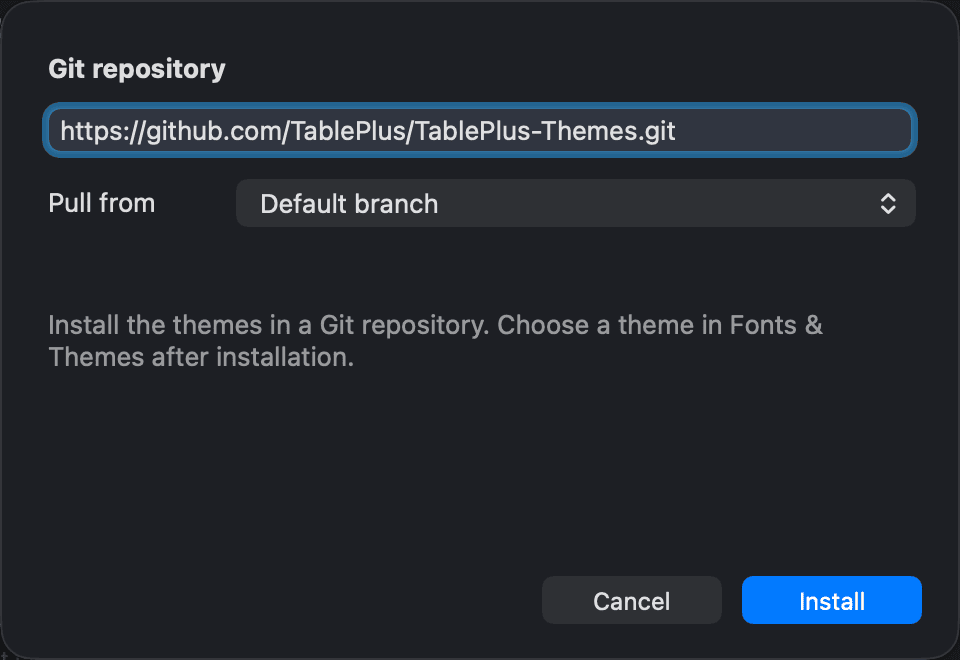
- Git… installs all themes in a Git repository. Enter the Git repository URL, choose whether to Pull from the default branch, a branch or a tag, and click Install.
A repository section in the theme list has buttons to update the repository, delete it, and show its information, where you can change the branch or tag to pull from and click Apply & Update. TablePlus checks for repository updates when you open the tab.
The source of the built-in themes is at github.com/TablePlus/TablePlus-Themes.
SQL Editor
| Option | What it does |
|---|---|
| Font | The font of the SQL Editor. System Mono (Default) or any installed font. |
| Font size | The font size, from 9 to 100. Default is 12. |
| Line Height | The line spacing, from 1.0 to 5.0. |
You can also change the font size from the SQL Editor itself. See Customize Query Editor.
Next to the theme list, you can change the syntax colors of the current theme, such as comments, numbers, quoted strings, keywords, the current query and selection backgrounds, and error highlights.
Data Table
| Option | What it does |
|---|---|
| Font | The font of the data table. System Mono (Default), System, or any installed font. |
| Font size | The font size, from 9 to 100. Default is 12. |
| Padding | The row padding of the data table, from 9 to 100. Default is 12. |
Next to the theme list, you can change the data table colors of the current theme, such as the backgrounds of deleted, modified and new rows, the border and background of selected cells, and the colors of the grid. Cell selection background fills the selected cells while the table has the focus. Until you set it, they keep the selection color of their row.
Application
Under Left Sidebar:
| Option | What it does |
|---|---|
| Font | The font of the left sidebar. System Mono (Default), System, or any installed font. |
| Font size | The font size, from 9 to 100. Default is 12. |
| Padding | Extra row padding of the left sidebar, from 0 to 5. Default is 0. |
Next to the theme list, you can change the application colors of the current theme, such as the window, sidebar, tab and notification colors.
Customize colors
Each color row has a color well, its hex value and a Reset button:
- Click the color well to pick a color, or click the hex value to type one.
- Click Reset to go back to the theme's own color.
Color changes apply to the theme that is currently in use and are kept on your Mac. To share a customized theme, export it.
Restore defaults
Click Restore Defaults, then Reset, to reset all fonts, sizes, padding and line height, your color changes to the System, Built-in and Git themes, and the default themes for Auto. Custom themes keep their colors.
-
On Windows and Linux, use
Ctrl + ,. ↩︎