Open Anything
Open Anything works like Spotlight on macOS: type a few letters and open what you need without leaving the keyboard.
Press ⌘ + P, or click the Command button in the toolbar, then type a keyword. TablePlus uses fuzzy matching to suggest items to open:1
- Databases
- Schemas
- Tables, views, and materialized views
- Functions and procedures
- Saved queries
- App features (see below)
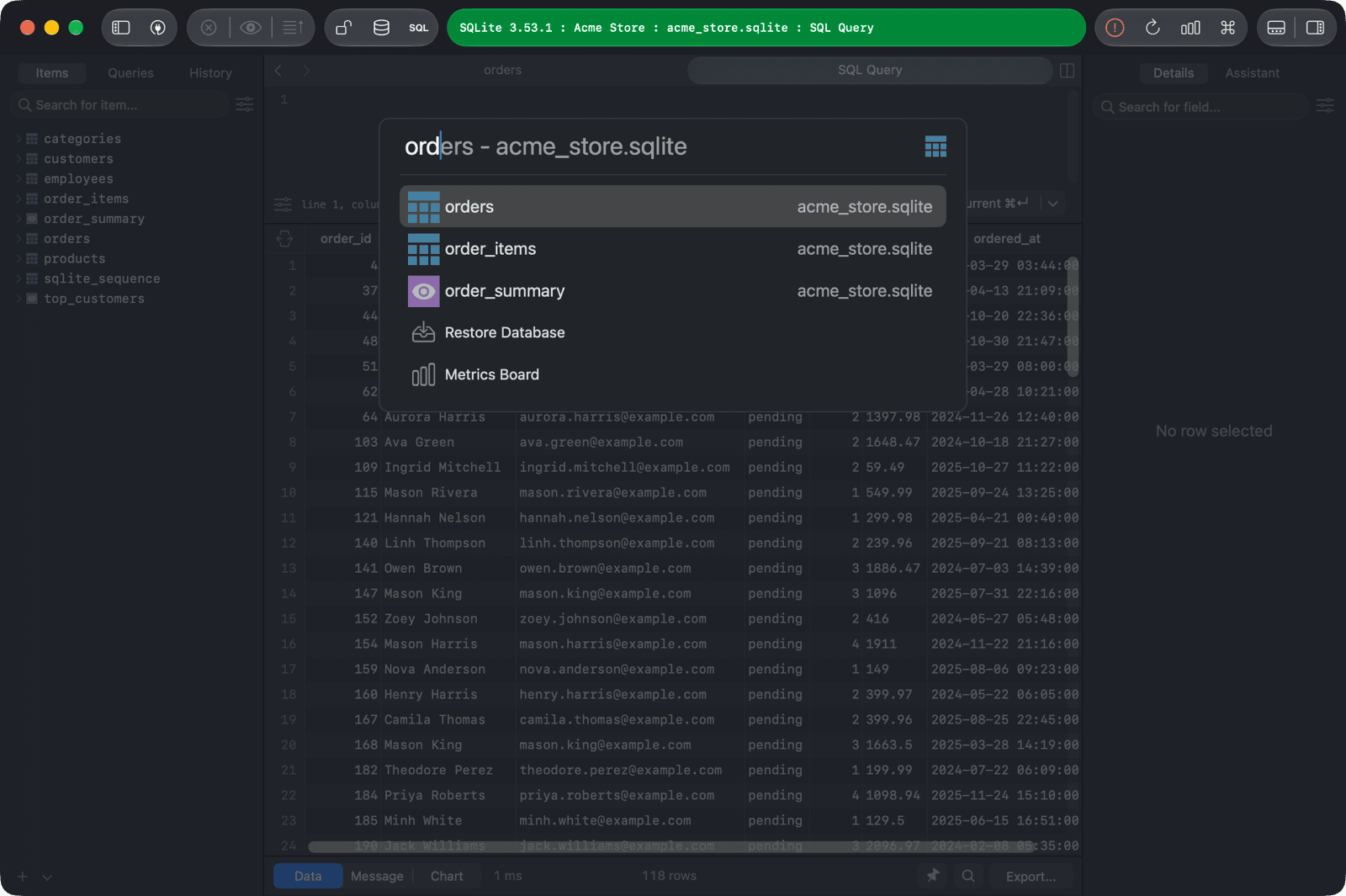
To open an item, double-click it, or select it and press Return. To open a table in a new tab, press ⌘ + Return.
- Use
↑and↓(or⌃ + Pand⌃ + N) to move through the results. - Press
Tabto complete the keyword with the suggested name. - Press
Escto clear the keyword. PressEscagain to close Open Anything.
Match the start or end of a name
- Start the keyword with
^to match names that begin with it, for example^order. - End the keyword with
$to match names that end with it, for example_items$. - Use both to match a name exactly, for example
^orders$.
Features
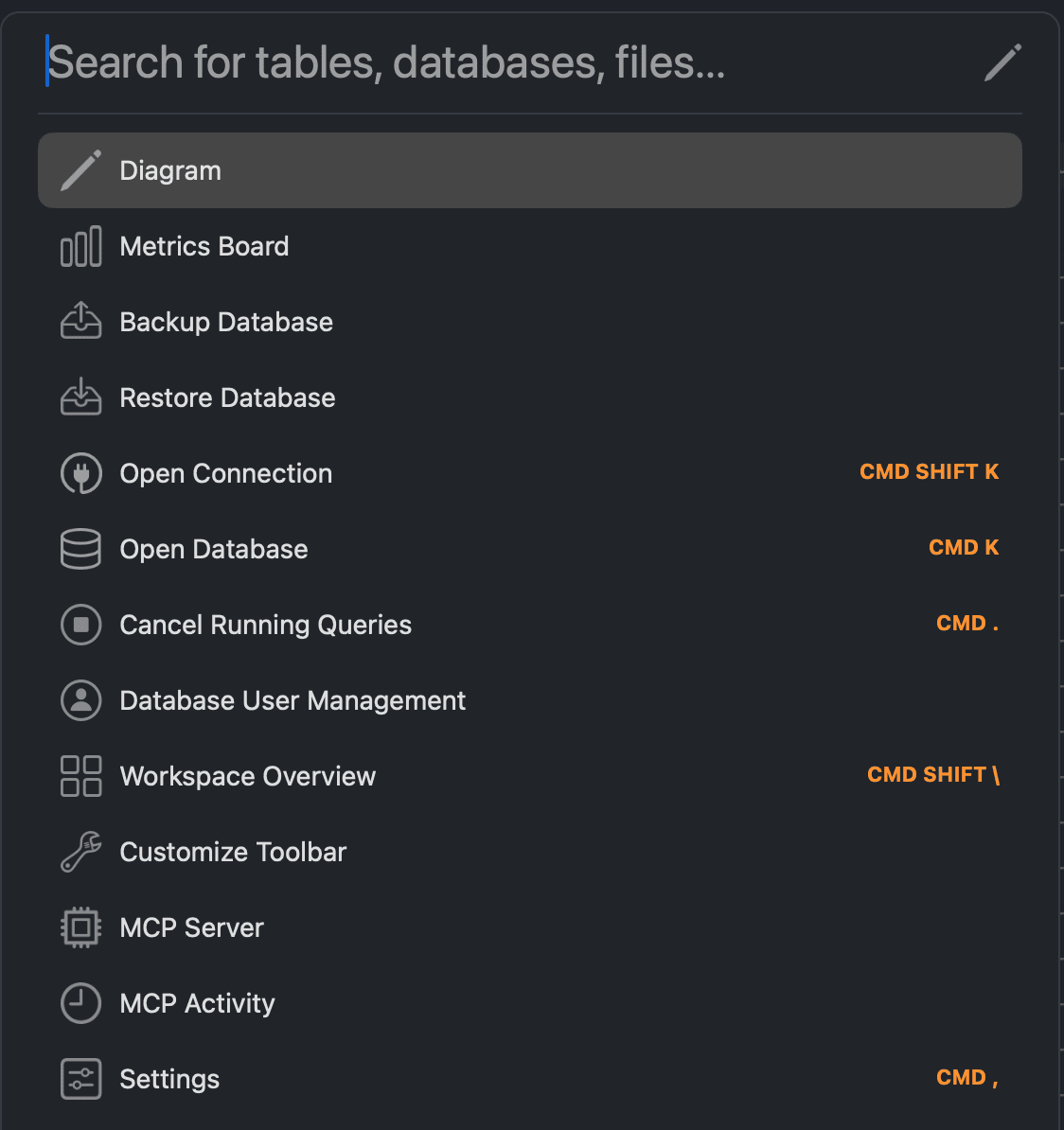
Open Anything also gives you quick access to app features. When you open it without typing anything, it lists them:
| Feature | Shortcut |
|---|---|
| Diagram | |
| Metrics Board | |
| Backup Database | |
| Restore Database | |
| Open Connection | ⌘ + Shift + K |
| Open Database | ⌘ + K |
| Cancel Running Queries | ⌘ + . |
| Database User Management | |
| Workspace Overview | ⌘ + Shift + \ |
| Customize Toolbar | |
| MCP Server | |
| MCP Activity | |
| Settings | ⌘ + , |
-
On Windows and Linux, use
Ctrlin place of⌘. ↩︎