Multi Tabs / Workspaces / Windows
TablePlus organizes your work in three levels:
- Tabs: each open table, view, function, or SQL Editor is a tab inside a workspace.
- Workspaces: each open database is a workspace. Several workspaces can share one window.
- Windows: you can split workspaces across several windows.
Multiple tabs
When you open a database object, such as a table, view, or function, TablePlus shows it in a tab.
When you open another object in the same database:
- If the current tab has changes or is a SQL Editor, TablePlus keeps it and shows the new object in an empty tab, or in another table, view, or function tab that has no changes. It opens a new tab only when there is no such tab.
- If the current tab has no changes, the new object replaces it in the same tab.
- To open an object and keep its tab, double-click it.
- To always open an object in a new tab, right-click it in the left sidebar and choose Open in new tab.
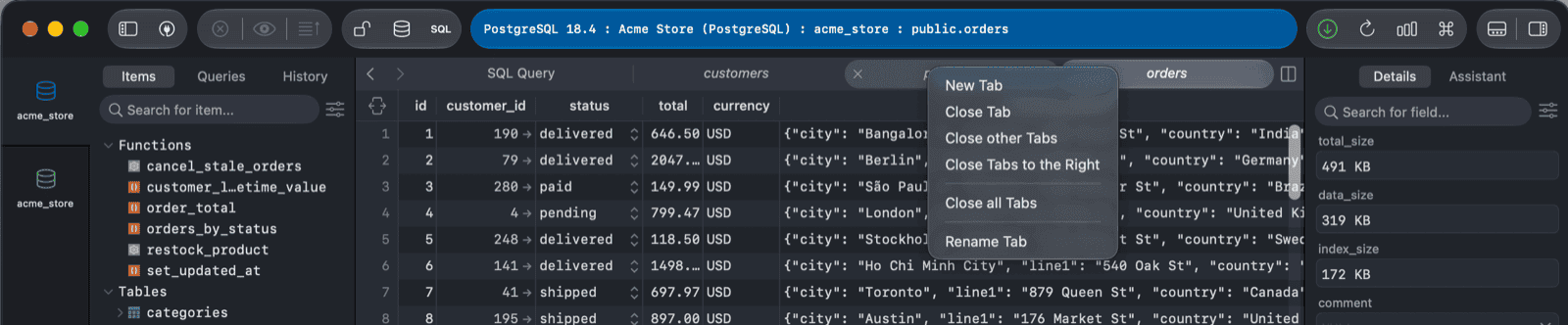
Right-click a tab to:
- New Tab
- Close Tab
- Close other Tabs: close all tabs except this one
- Close Tabs to the Right
- Close all Tabs
- Rename Tab: give the tab a name, which helps when you have several SQL Editors open
Shortcuts for tabs:
- Press
⌘ + Tto open a new tab. By default, the new tab is a SQL Editor. To open an empty tab instead, go to Settings > General and set Command + T to open to Empty tab. - Press
⌘ + Wto close the current tab. You can also click the tab's close button, or click the tab with the middle mouse button. - Press
⌘ + ]and⌘ + [to select the next and previous tab, or⌘ + 1to⌘ + 9to jump to a tab.
Open a database
In a new workspace
When you open another database, TablePlus opens it in a new workspace in the same window by default.
- Press
⌘ + Kand double-click the database name. - Or right-click the database name and choose Open in new Tab.
- Or open Open Anything (
⌘ + P), type the database name, select it, and pressReturn.
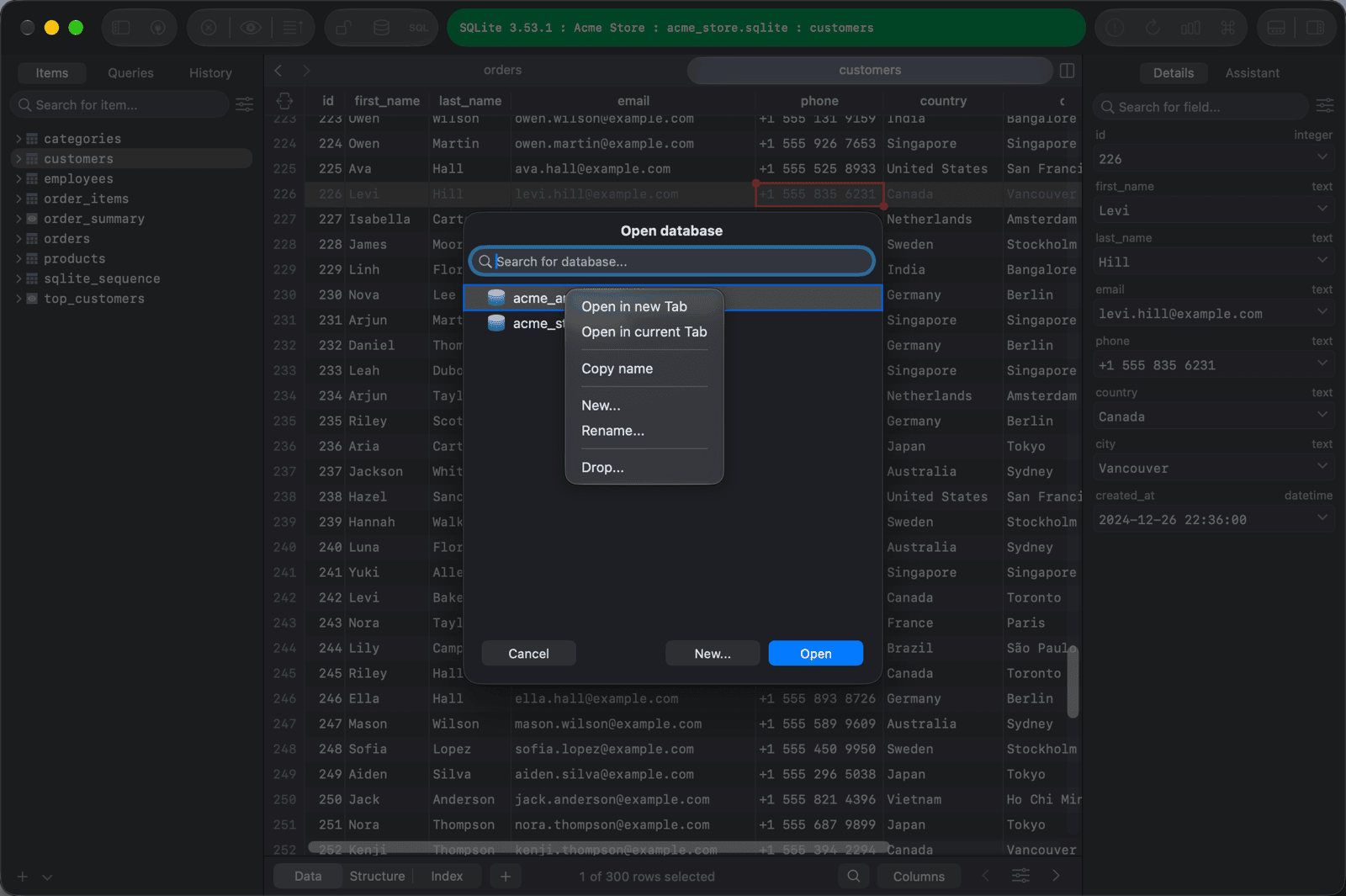
In the current workspace
To replace the database of the current workspace, press ⌘ + K, right-click the database name, and choose Open in current Tab.
Open a connection
In a new workspace
When you open another connection, TablePlus opens it in a new workspace in the same window by default. Press ⌘ + Shift + K and double-click the connection name.
In a new window
- Press
⌘ + Shift + K, right-click the connection, and choose Open in new Window. - Or press
⌘ + Nto show the connection list and open the connection from there.
Switch between workspaces
When more than one workspace is open in a window, the database stack on the far left of the window shows one icon per workspace. Click an icon to switch to that workspace. You can also:
- Press
⌘ + Shift + ]and⌘ + Shift + [to select the next and previous workspace. - Press
⌘ + Shift + \to see all open workspaces.
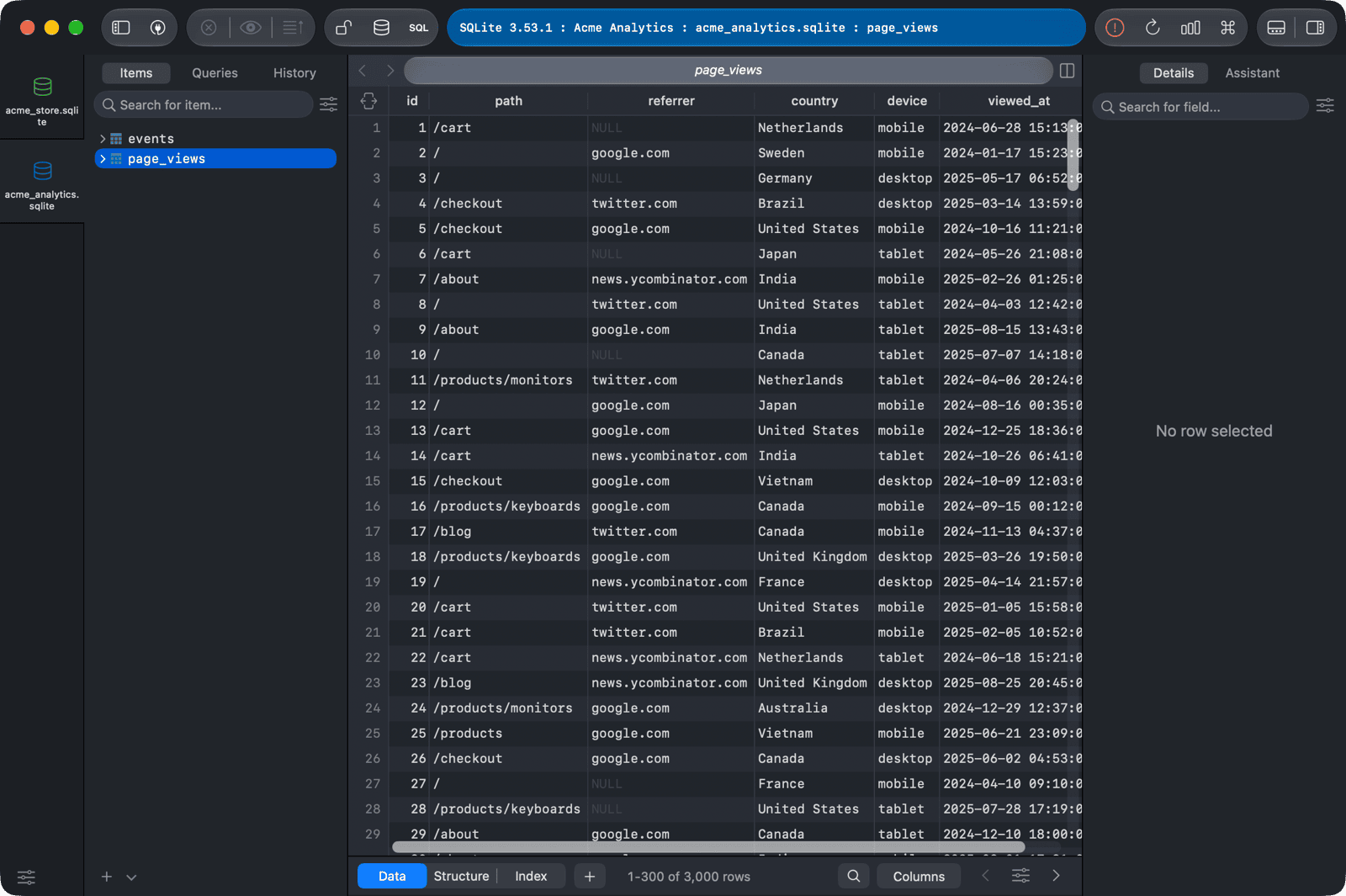
Move a workspace to a new window
Right-click the workspace in the database stack and choose Move Tab to New Window. To close a workspace, choose Close connection from the same menu.