Safe mode
Safe Mode decides how TablePlus warns you before it sends queries to the server. Each connection has its own level:
| Level | Description |
|---|---|
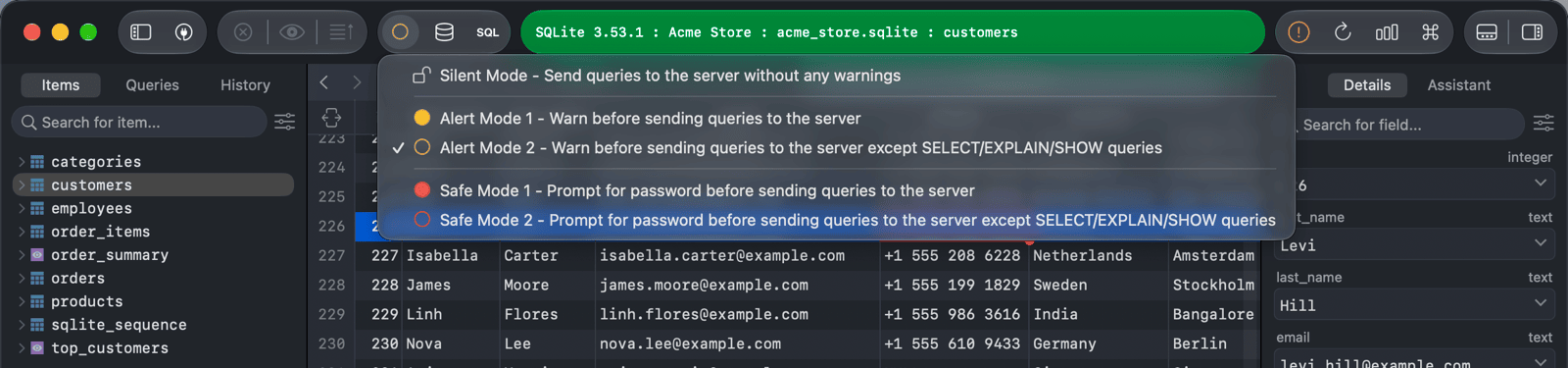
| Silent Mode | Send queries to the server without any warnings (default) |
| Alert Mode 1 | Warn before sending queries to the server |
| Alert Mode 2 | Warn before sending queries to the server, except SELECT/EXPLAIN/SHOW queries |
| Safe Mode 1 | Prompt for the password before sending queries to the server |
| Safe Mode 2 | Prompt for the password before sending queries to the server, except SELECT/EXPLAIN/SHOW queries |
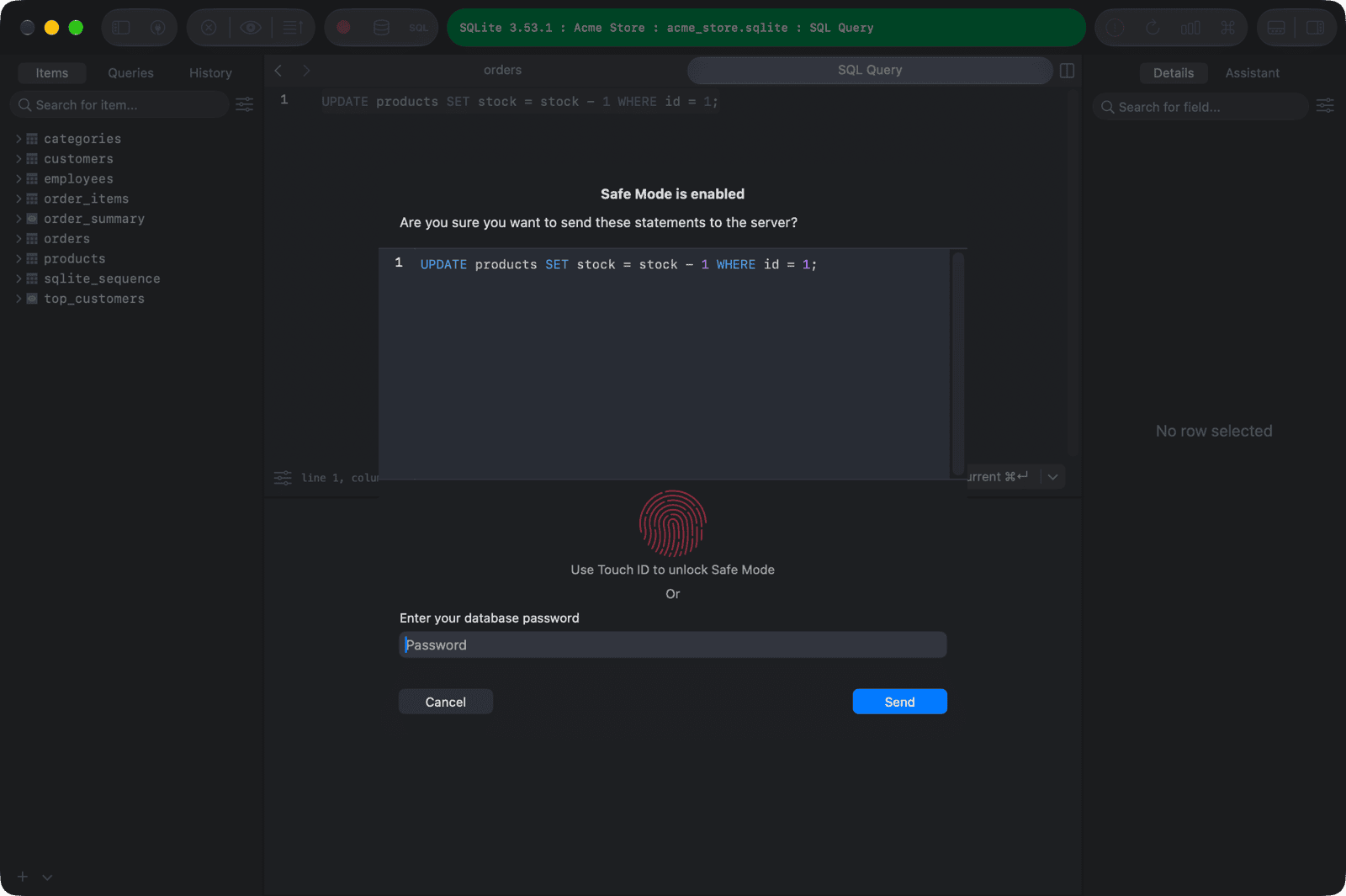
In an Alert Mode, TablePlus shows the statements and asks you to confirm with Send. In a Safe Mode, you also have to enter the database password.
Change the level
- Click the Safe Mode button in the toolbar and choose a level. The button's icon shows the current level.
- Or set Safe Mode in the connection's settings.
When the connection is currently in Safe Mode 1 or 2, you have to enter the database password to change the level.
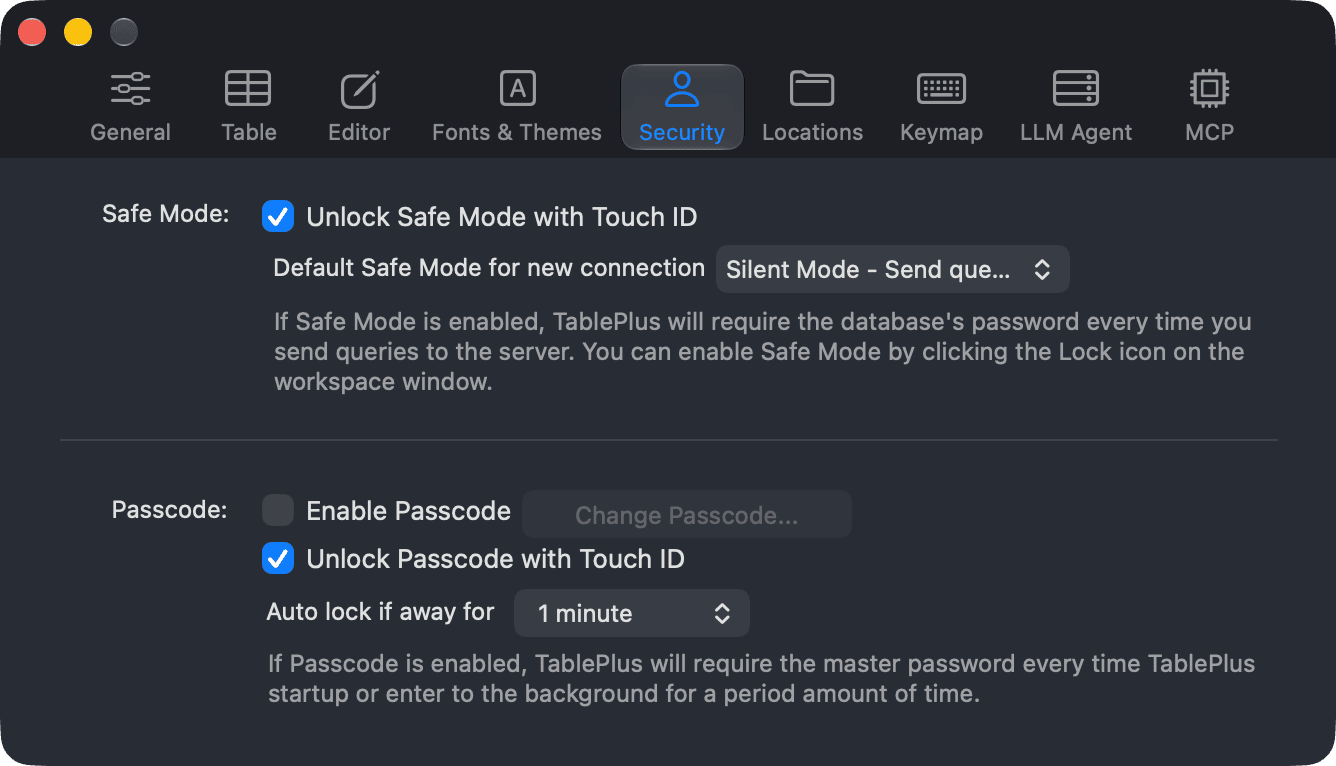
To choose the level that new connections start with, go to Settings > Security and set Default Safe Mode for new connection.
Unlock with Touch ID
Instead of typing the database password, you can unlock Safe Mode with Touch ID or your Mac's password:
- Go to TablePlus > Settings… (Preferences… on macOS 12), or press
⌘ + ,. - Click Security.
- Turn on Unlock Safe Mode with Touch ID.