SQL Editor
These options are in Settings > Editor (⌘ + ,).1 Fonts, line height and syntax colors are on the Fonts & Themes tab.
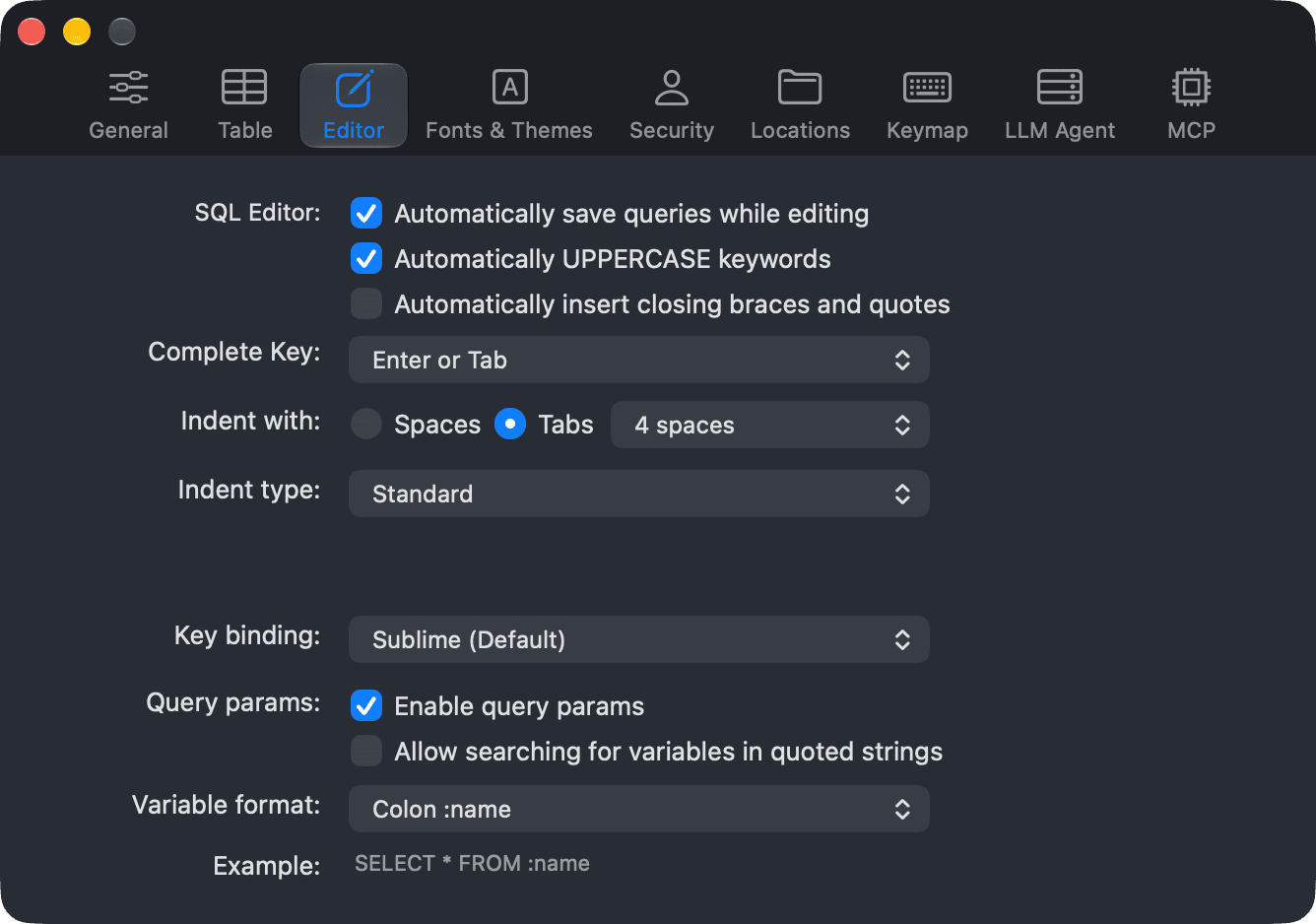
SQL Editor
| Option | What it does |
|---|---|
| Automatically save queries while editing | When you open a saved query (favorite) in the editor, your edits are saved back to it automatically. Turn it off to save changes only when you choose to. |
| Automatically UPPERCASE keywords | Inserts SQL keywords in uppercase when you pick them from autocomplete. Format query also uses this setting for keyword case. |
| Automatically insert closing braces and quotes | Adds the closing bracket or quote when you type an opening one. |
| Complete Key | The key that accepts an autocomplete suggestion: Enter or Tab (default), Enter or Tab. |
See Autocomplete and Query Favorite & Keyword Binding for more about these features.
Indentation
| Option | What it does |
|---|---|
| Indent with | Choose Spaces or Tabs, and the indent width (2, 4, 6 or 8 spaces). Applies to the editor and to formatted queries. |
| Indent type | The layout Format query uses: Standard, Tabular Left or Tabular Right. |
Tabular formatting always uses 10 spaces for indentation. The Indent with settings have no effect on it.
Key binding
Key binding sets the editing mode of the SQL Editor: Sublime (Default) or Vim.
Query params
| Option | What it does |
|---|---|
| Enable query params | Treats variables in your query as parameters. TablePlus asks for their values before running the query. |
| Allow searching for variables in quoted strings | Also looks for variables inside quoted strings. |
| Variable format | The variable syntax to look for: Colon :name, Percent %name%, Question mark ?, Dollar braces ${name}, Dollar $name or Double braces {{name}}. Example shows a query in the selected format. |
See Query Parameters for details.
-
On Windows and Linux, use
Ctrl + ,. ↩︎