Schedule Tasks
Schedule Tasks backs up, restores or syncs your databases automatically: every hour, day, week or month, once at a set time, or only when you run them.
Open Backups
On the welcome window, click the clock button at the top left. The window switches from your connections to Backups, the list of your schedules. Click the plug button next to it to go back to your connections.
Each schedule in the list shows its name and when it runs, for example "2:00 AM · Daily", with a switch to turn it on or off and a button to run it now or stop it. A mark shows when its last run failed or when it needs your attention; click the mark for details.
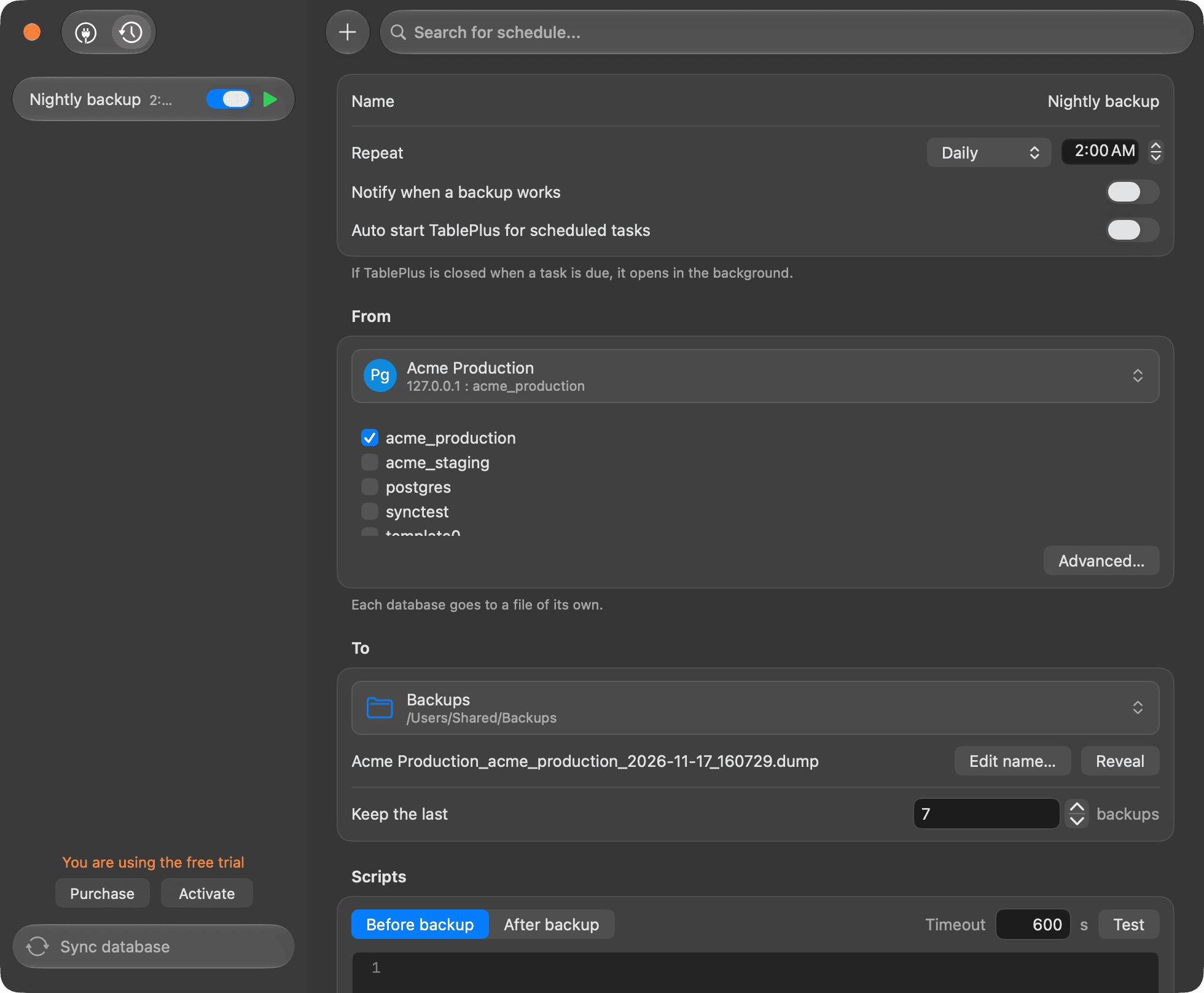
Create a schedule
- In Backups, click + at the top, or New Schedule in an empty list. TablePlus fills the new schedule from the selected connection.
- Enter a Name.
- Choose when it runs with Repeat: Once, Hourly, Daily, Weekly, Monthly or Manually, and set the time, days or day of the month. The default is every day at 2:00 AM.
- Under From, choose a connection and the databases to back up. Or choose a folder of dump files to restore: each run restores the newest file of each name, and never the same file twice.
- Under To, choose where the backups go:
- A folder: set the file name with Edit name..., and how many backups to keep with Keep the last. TablePlus only removes files that this schedule made. For MySQL and MariaDB, you can turn on Compress with gzip.
- A connection, to sync into it: choose the Database (by default, the same name as the source). Create the database when it's missing is on by default.
To schedule a sync you set up in Sync Database, click Schedule... in the Sync window instead. TablePlus creates the schedule with the same source and target, turned off, so you can set the time first.
Backup options and scripts
For a backup, click Advanced... under From to choose the version of the dump tool and its options, as in Backup & Restore.
A backup can run a script Before backup and After backup, for example to copy the file to another place. Set a Timeout (600 seconds by default) and click Test to try the script. Choose whether the after script runs always or only after a backup that works. The environment variables the scripts receive are listed under them.
Approve a schedule
A scheduled sync, and a backup of a connection in Safe Mode, need your approval before they can run. Click Approve... in the schedule and check what it will do. If a later run would do more than you approved, for example because the target has new tables, TablePlus skips the run and asks you to approve again.
When schedules run
Schedules run while TablePlus is open, even with no window open. A run that was missed while TablePlus was closed runs once when TablePlus opens.
To run schedules when TablePlus is closed, turn on Auto start TablePlus for scheduled tasks. TablePlus then opens in the background when a task is due, and quits when it's done. macOS may show a "Background Items Added" notification. Turn the option off before you delete TablePlus.
Connections that ask for a password every time, that sign in with Microsoft Entra ID, or that run an unapproved startup script can't be scheduled.
Run now and history
- To run a schedule right away, click its run button, or Run Now in the schedule. Click stop to cancel a run.
- The schedule shows its last 20 runs. Click Log to see what a run did.
- To see the runs of all schedules, click Schedule Task History..., or navigate to Tools > Schedule Task History... Double-click a run to open it.
Right-click a schedule to run, turn on or off, duplicate, reveal it in Finder, or delete it. Deleting a schedule also deletes its runs and logs, but not the backups it made.
Notifications
TablePlus always sends a notification when a scheduled task fails or is skipped. To be told when it works too, turn on Notify when a backup works (or Notify when a sync works). When a task fails, the clock button of the welcome window also shows a red dot until you open Backups. Click a notification to open the log of that run.
During the free trial, you can create and run one schedule.