Jump
Jump finds a column, a row or a value in the table you're looking at and takes you there. It works in the data of a table and in query results.
Open Jump
Do one of the following:
- Press
⌘ + Lor⌃ + G. - Navigate to Navigate > Jump...
- Click Columns at the bottom of the table and choose Jump to Column...
A bar opens at the top of the table, with the text you typed last selected.
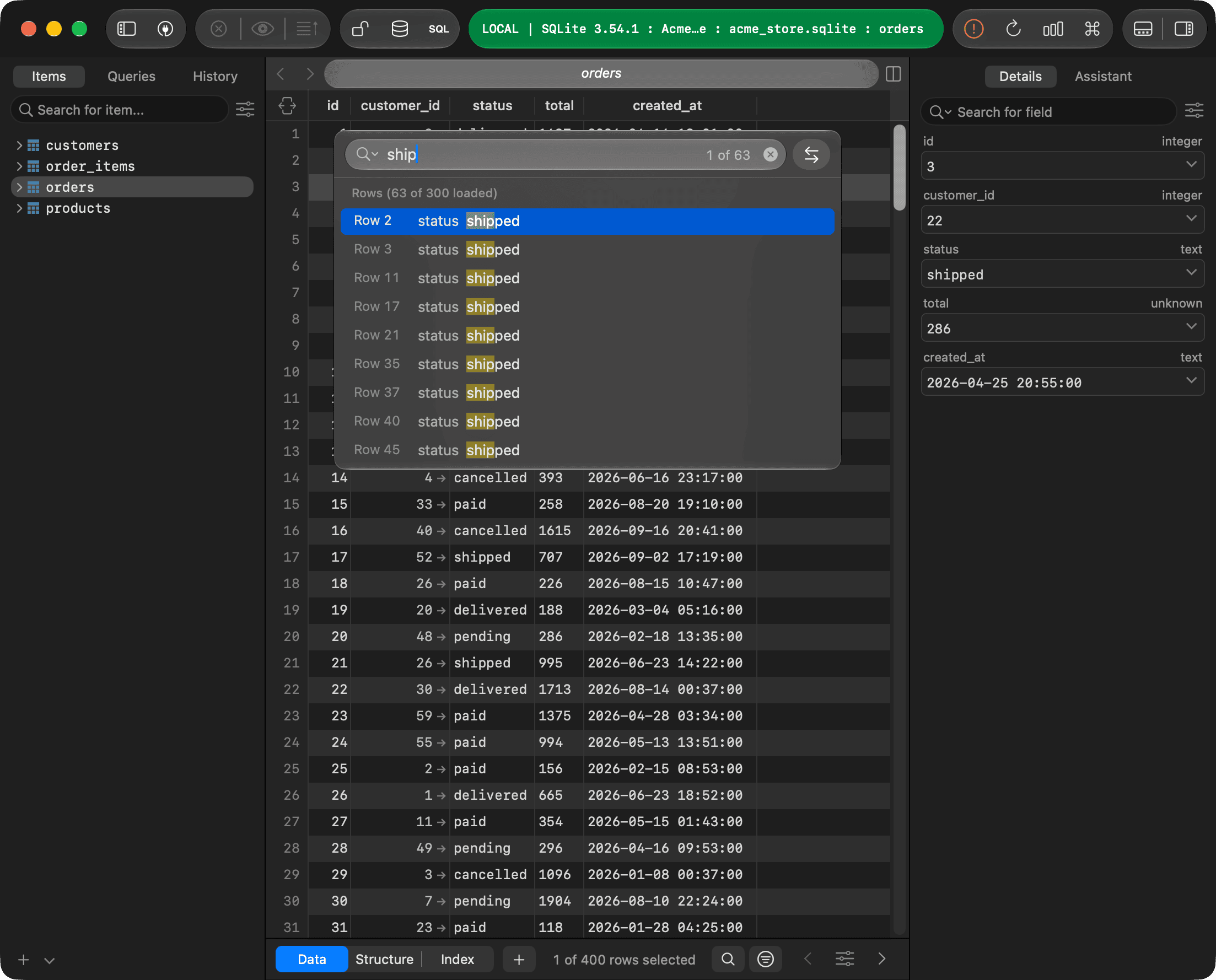
What you can type
- A column name: the list shows the matching columns. Hidden columns are marked Hidden; choose one to show it. With an empty field, the list shows all columns.
- A row number: choose Go to row to go to that row. On a later page, you can go to the row of this page or of the whole table.
- A value: the list shows the rows that contain it. Separate several words with spaces to find rows that contain all of them, or put a phrase in quotes, such as
"New York".
Jump matches column names the way the right sidebar does (Fuzzy or Contains, see Right sidebar). It searches values in the rows that are loaded, as the cells show them, and lists up to 1,000 rows. Click the magnifying glass to turn on Match Case, Match Whole Word or Use Regular Expression. Without them, the search ignores case and accents.
Move through the results
- Press
↑and↓(or⌃ + Nand⌃ + P), or click an item, to show it in the table. - Press
Return, or double-click an item, to jump to it. - Press
Escto close the bar and go back to where you were. Click anywhere else to close it and stay.
When you jump to a column, the selected row stays the same and the column's header flashes.
Replace values
- Click the replace button next to the search field, or click Columns at the bottom of the table and choose Search and Replace Within Table...
- Type the text to find, and the new text in Replace with.
- Click Replace (
Return) to change the selected row and move to the next match, or Replace All (⌘ + Return) to change every loaded row that matches. - Press
⌘ + Sto commit the changes.
In replace mode, the search text is one phrase, and column names and row numbers aren't matched. Replace skips NULL and other constants, booleans, binary values, deleted rows and columns that can't be edited. With Use Regular Expression, you can use $1, $2 and so on in the new text. Press ⌘ + Z to undo a whole replace.