Sync Database
Sync Database copies a database, or some of its tables, from one connection to another. It can also save databases to dump files in a folder, or restore them from dump files. It replaces Backup & Restore, which is still available as Backup database (Legacy) and Restore database (Legacy).
TablePlus ships with its own dump and restore tools, so you don't need to install them. Over SSH, TablePlus runs the server's own pg_dump and pg_restore (or mysqldump and mysql, mariadb-dump and mariadb) when the SSH host has them, and uses its built-in tools through the tunnel otherwise.
Open Sync Database
Do one of the following:
- On the welcome window, click Sync database at the bottom left and choose Sync database.
- Navigate to Tools > Sync database...
- In a workspace, open Open Anything (
⌘ + P) and choose Sync Database.
Sync a database
- Under From, click Choose a Connection or Folder, Files... and choose the source connection.
- Tick what to copy:
- Tick a database to copy all of it: its tables, views, functions, types and schemas.
- Or expand a database and tick only some tables. Partitions and child tables come with their parent table.
- Under To, choose the target connection and select the database to copy into. Each database is marked Exists or Create. To copy into a new database, click New database at the bottom of the list.
- Click Sync Now.
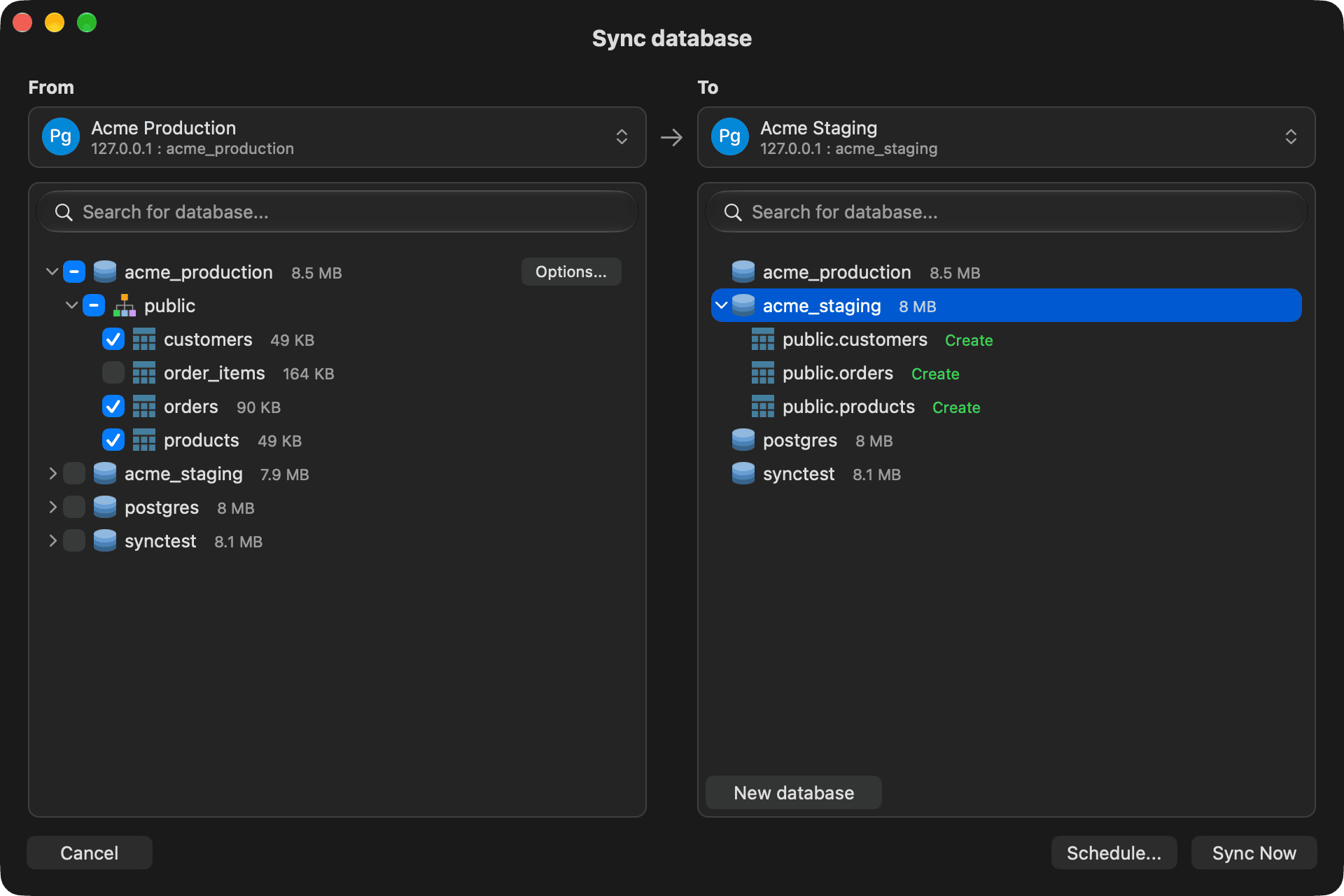
When you tick one source database and select a target database, each table shows what will happen to it: Replace, Create or Kept. Sync doesn't merge rows: a table that exists in the target is replaced by the source table.
When you tick several databases, each one goes into the target database with the same name. If some of them already exist, TablePlus asks whether to Skip Duplicates, Override them, or Keep Both (the copy is named, for example, shop_2).
For a MySQL or MariaDB target, Back up the target first (on by default) saves a backup of the target database before the sync. If the restore fails, TablePlus offers to restore that backup.
Review the plan
Before it writes anything, TablePlus reads both sides and shows the plan in a sheet, for example "Sync acme_production into acme_staging?". It lists where each step runs, warnings, what the target loses, and anything to check first. Click Sync to start, or Cancel.
If something blocks the sync, for example a table that other ticked tables depend on, the sheet says that the sync can't run and why. When it can, it offers Add Dependents to tick the missing tables.
If a connection uses Safe Mode, TablePlus asks you to confirm, or to enter the password, first.
Follow the progress
A log sheet shows each stage (Prepare, Dump, Transfer, Restore or Save, Done) and the progress of the transfer. Click Cancel to stop the sync. The first error stops it too. If you close the Sync window while a sync is running, TablePlus asks whether to Stop Sync or Continue.
If you switch to another app, TablePlus sends a notification when the sync finishes.
Dump options
Click Options... next to a ticked source database to change how it's dumped:
- PostgreSQL: Compression, for dumps saved as files (on by default).
- MySQL and MariaDB: Locking (No locks with a consistent snapshot by default, or lock the tables), Routines and triggers (on by default), Events, and Binary columns as hex.
To add a flag of the dump tool, choose it from the Choose... menu. Common flags are listed first and the rest are under Other Flags. See all flags opens the documentation of pg_dump, mysqldump or mariadb-dump. The flags you choose are listed under the menu: click ✕ to remove one.
To type a flag that isn't in the menu, choose Add flag manually... and type it, for example --exclude-table=logs for PostgreSQL or --ignore-table=shop.logs for MySQL. Press Return after each flag. A flag can be followed by its value after a space. TablePlus refuses the flags it sets itself, such as the host, port, user, output file and format. Flags that only work for dump files are left out of a sync between two servers, with a warning in the plan.
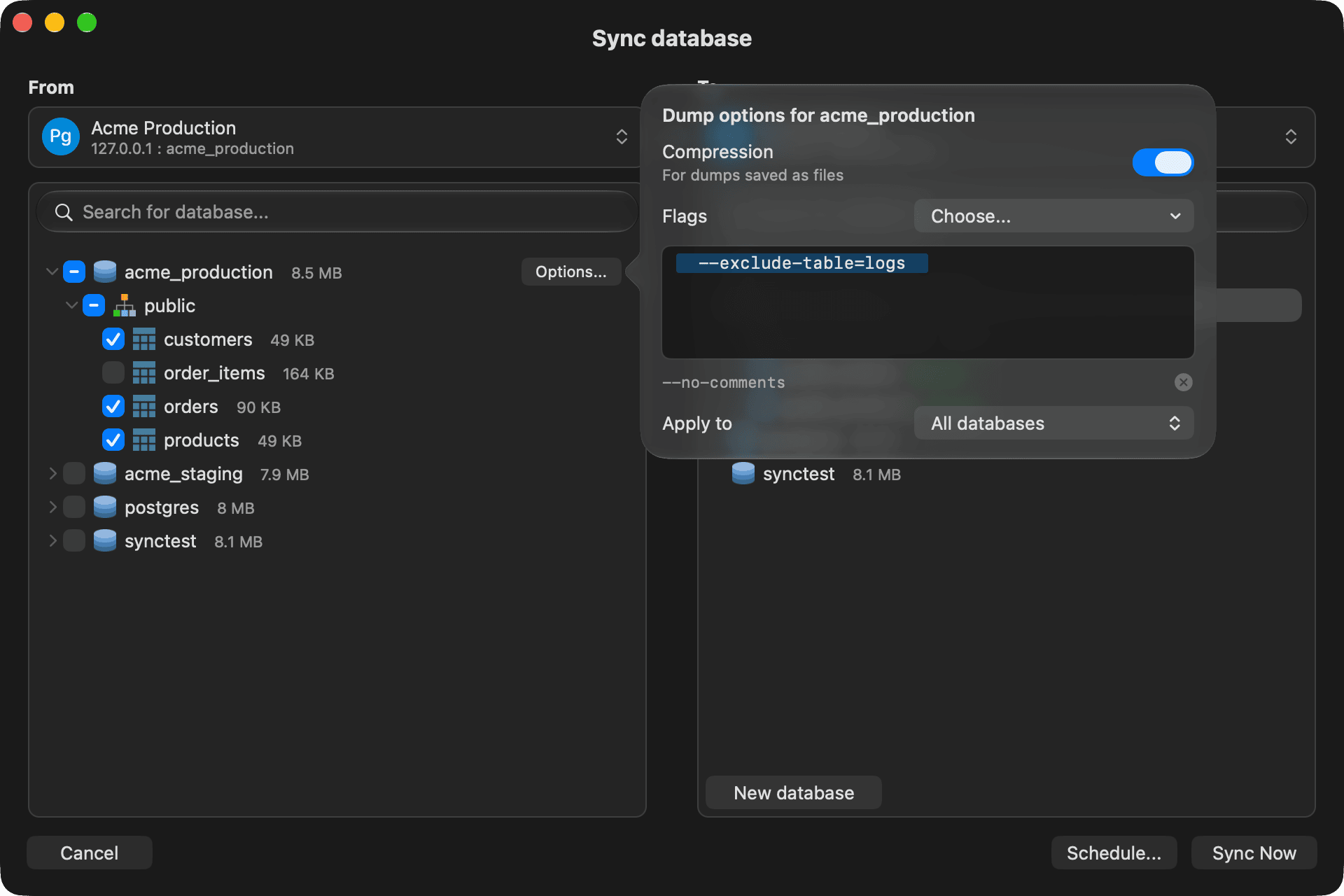
Under Apply to, choose All databases or This database. TablePlus remembers your options on this Mac.
Sync to or from a folder
In the From or To list, choose Choose Folder, Files... instead of a connection.
- To a folder: TablePlus saves each ticked database to a dump file:
<database>.dump(PostgreSQL custom format) or<database>.sql(MySQL and MariaDB). Click Rename next to a file to change its name, and Pattern... to build the name from parts such as the date. TablePlus never overwrites a file: if the name is taken, it adds_2. - From a folder: tick the dump files to restore. Sync reads PostgreSQL custom and tar archives, and MySQL
.sqland.sql.gzfiles. To run a plain PostgreSQL.sqlfile, use File > Import > From SQL Dump... instead. See Import and export.
You can't choose a folder on both sides.
Supported databases
Sync Database works with PostgreSQL, MySQL and MariaDB connections:
- Both sides must use the same database: for example, it can't copy from MySQL to MariaDB.
- It can't copy to an older server version.
- For PostgreSQL, the source must be version 9.2 or newer, and the target 9.6 or newer.
To run a sync automatically, click Schedule... in the Sync window. See Schedule Tasks.