Right sidebar
The right sidebar shows the details of the selected row, one field per line. It is the easiest way to read and edit a row of a table with many columns, without scrolling horizontally. When you select several rows, you can edit a field for all of them at once.
To show or hide the right sidebar, press Space while the table has focus, or click the right part of the Panels button in the toolbar.
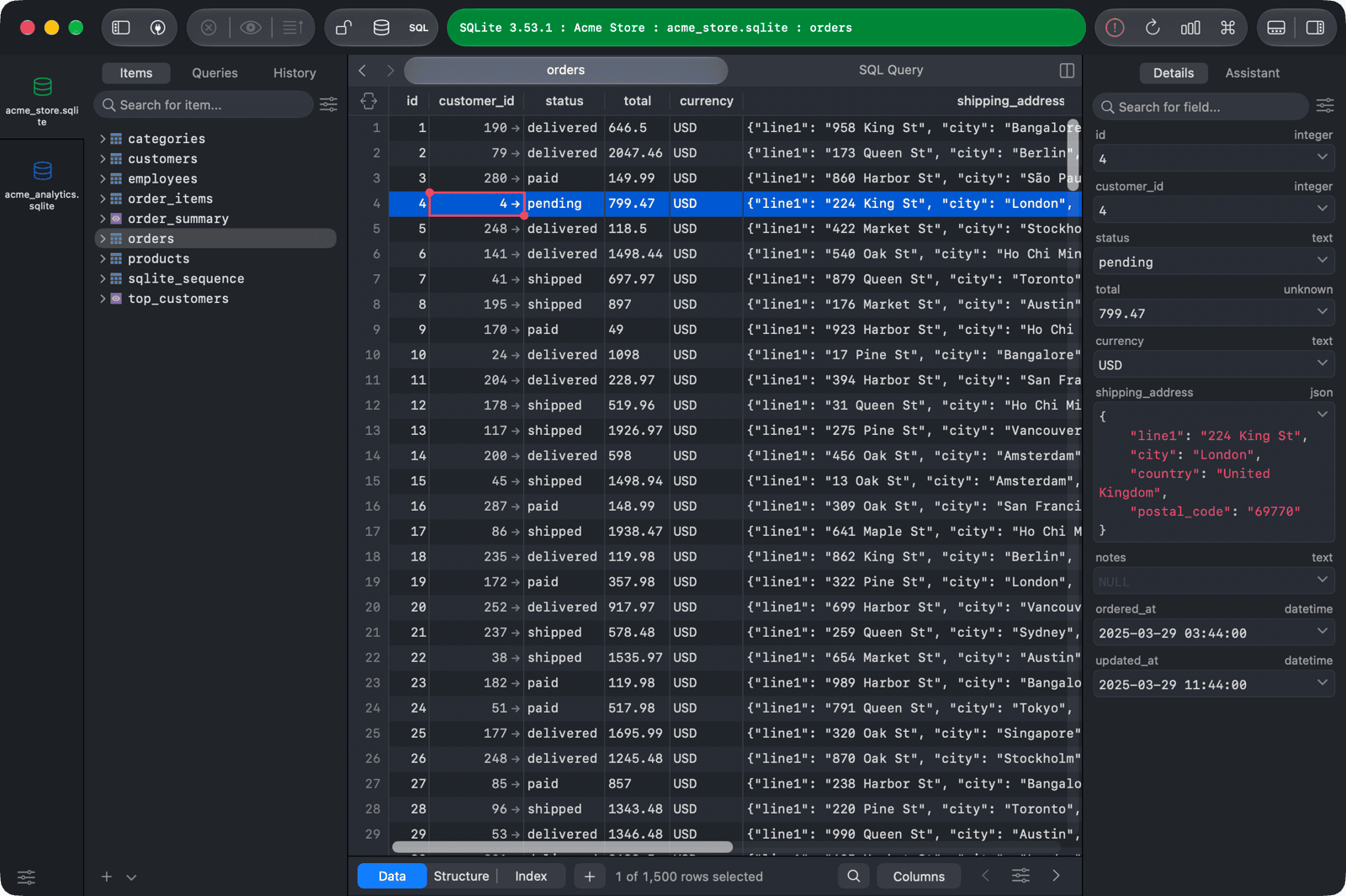
Edit fields
Click a field to edit its value. The button next to a field opens a menu of quick values for that field, such as NULL, DEFAULT, EMPTY, or NOW() for date and time columns. For text values you can also choose PRETTY or MINIFY to reformat JSON, or Add a file... to load the value from a file.
As with any other change in the GUI, your edits are pending until you commit them.
Search for a field
Type in the Search for field... box at the top to filter the fields by column name.
Settings
Click the settings button next to the search box to change:
- Matching strategy: Fuzzy - default or Contains, for the field search.
- Auto Pretty JSON: show JSON values formatted.
- Enable LLM Chat: add an Assistant tab next to Details, where you can ask an LLM about your data. When enabled, TablePlus sends your prompts directly to the LLM server you configured. See LLM Plugin.