Column
You manage the columns of a table in its Structure tab. To open it, click Structure at the bottom of the window or press ⌃ + ⌘ + ]. Each row in the Structure tab is a column of the table, with attributes such as column_name, data_type, is_nullable, column_default, and foreign_key. The available attributes depend on your database.
Changes are kept locally until you press ⌘ + S1 to commit them to the server.
Insert column
- Open the table's Structure tab.
- Click + Column at the bottom, press
⌘ + I, right-click and choose New Column, or double-click the empty area below the last column. - Set the column's attributes: name, data type, nullability, and default value.
- Press
⌘ + Sto commit the change.
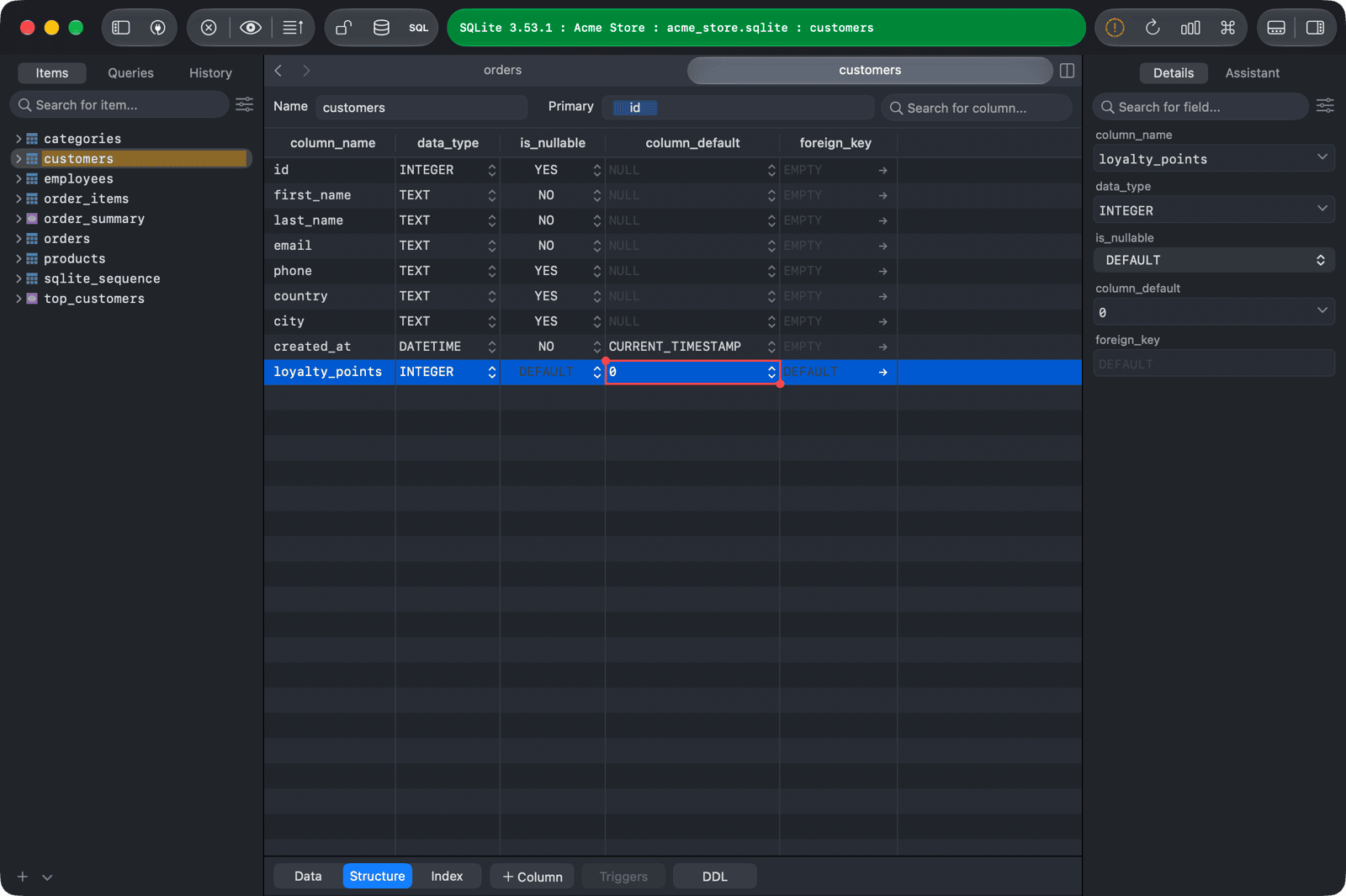
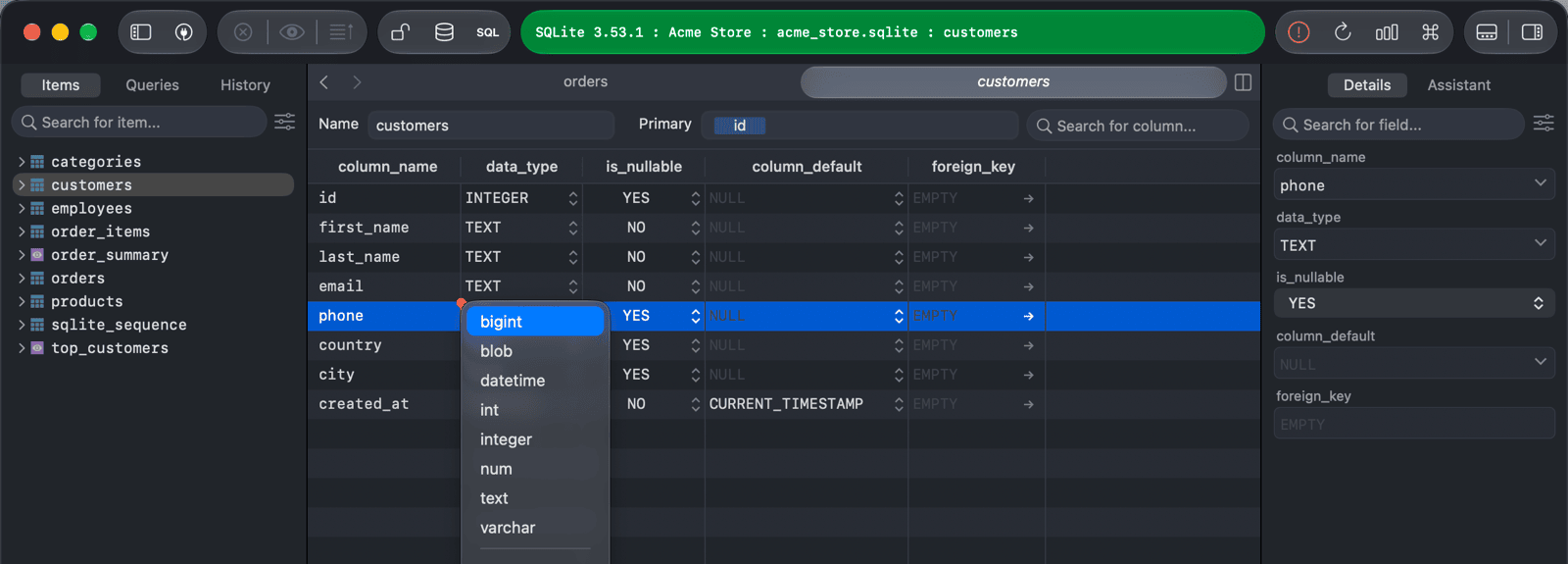
To set an attribute, double-click the cell and type the value, or click the cell's arrow (or select it and press ⌥ + Return) to choose from a menu. For example, the data_type menu lists the data types of your database, and the column_default menu has EMPTY, NULL, and common defaults such as CURRENT_TIMESTAMP.
Edit column
Editing a column is only available if your database supports altering columns.
- Open the table's Structure tab.
- Double-click an attribute of the column and edit it inline.
- Press
⌘ + Sto commit the change.
To edit all attributes of a column in a form, select it and press Space to show the right sidebar. This is helpful for bulk edits.
To find a column quickly, type its name in the search field at the top of the Structure tab (⌘ + F).
Reorder columns
For MySQL, MariaDB, and ClickHouse, you can change the position of a column: drag the handle on the left of the column's row to a new position, then press ⌘ + S to commit the change.
Delete column
- Open the table's Structure tab.
- Select the column and press
Delete, or right-click it and choose Delete. - Press
⌘ + Sto commit the change.
Copy column definitions
Right-click in the Structure tab and choose Copy Rows As or Copy Selected Cells As to copy column definitions as Plain Text, JSON, HTML, Markdown Table, CSV, or CSV with Header.
-
On Windows and Linux, use
Ctrl + S. ↩︎