Row
You work with rows in the table's Data tab. Changes to rows are highlighted and kept locally until you press ⌘ + S1 to commit them to the server. See Commit changes.
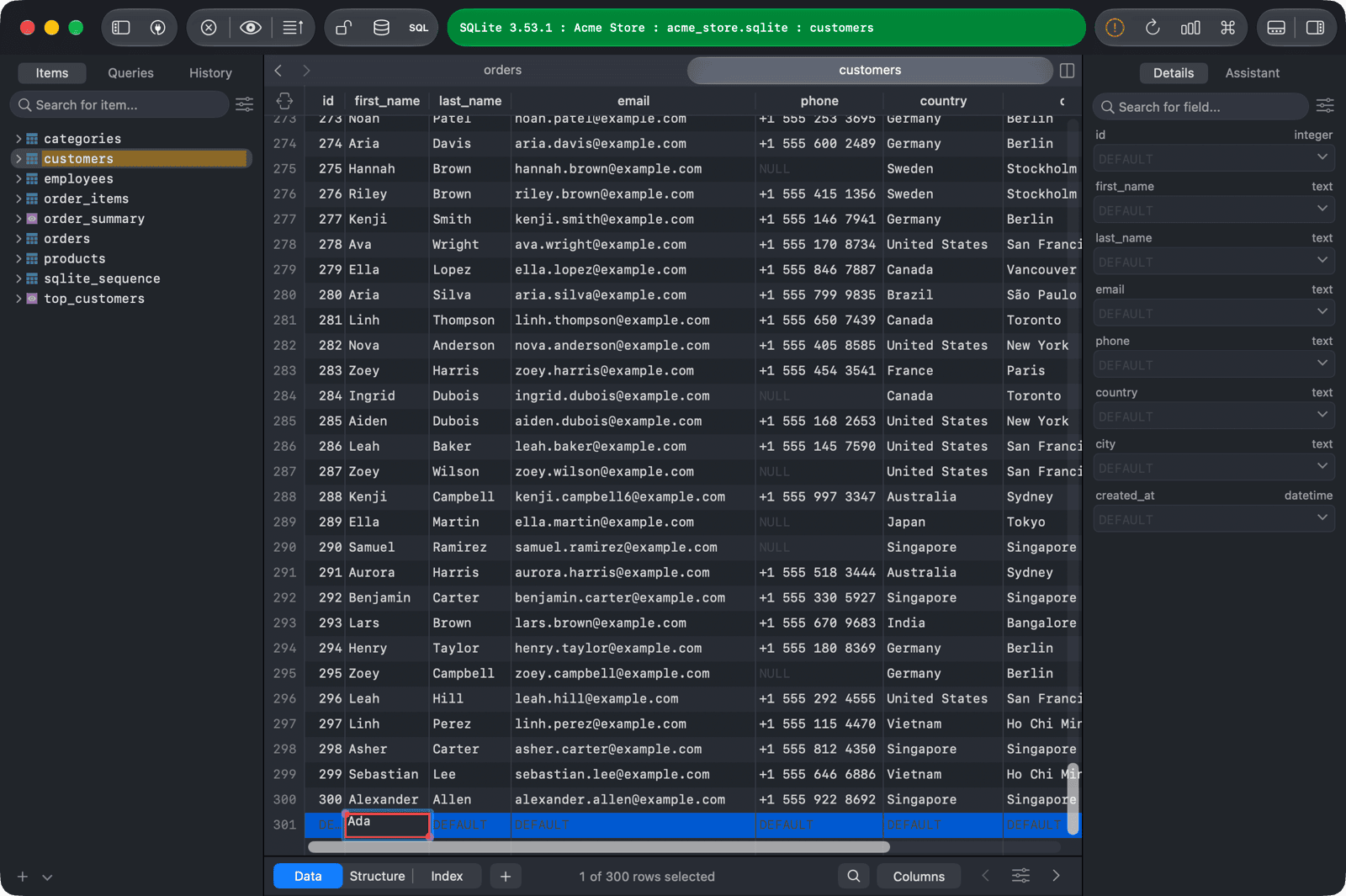
Insert row
- Open the table's Data tab.
- Click + Row at the bottom of the table, press
⌘ + I, or double-click the empty area below the last row. - Enter the values of the new row.
- Press
⌘ + Sto commit the change.
Duplicate row
- Select one or more rows.
- Right-click and choose Duplicate, or press
⌘ + D. You can also copy rows with⌘ + Cand paste them with⌘ + V. - Press
⌘ + Sto commit the change.
Edit row
To edit a cell, double-click it and edit the value inline, then press ⌘ + S to commit the change.
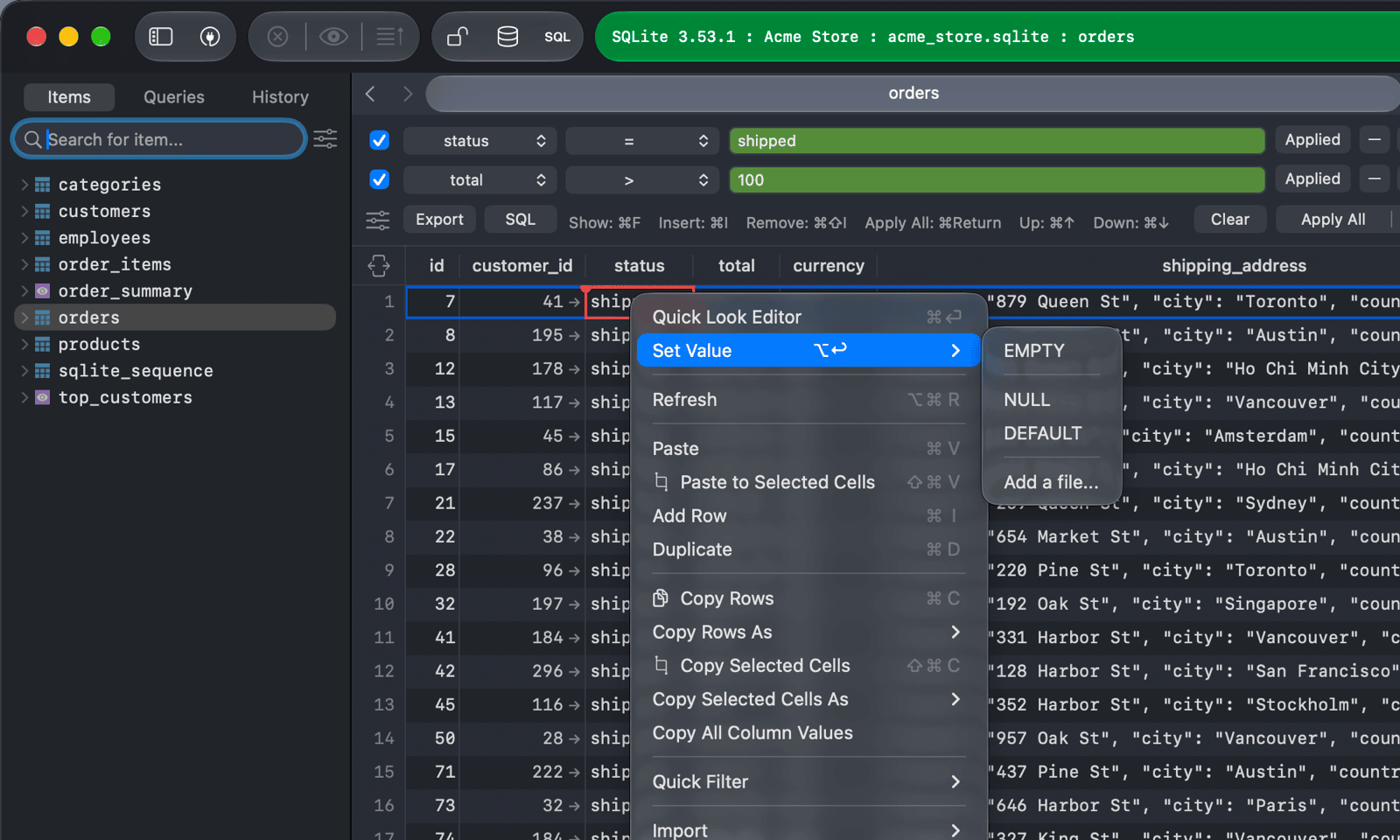
To set a special value, right-click the cell and open Set Value, or select the cell and press ⌥ + Return. Depending on the column type, you can choose EMPTY, NULL, DEFAULT, NOW() (GETDATE() or GETUTCDATE() on SQL Server), Date Picker..., or Add a file... to load a file into a binary column.
To edit all values of a row in a form, press Space to show the right sidebar. This is helpful when a table has many columns, or when you edit several rows at once.
Select cells
Click a cell and drag to select a rectangular range of cells. Use the arrow keys to move between cells, and press Return to edit the selected cell.
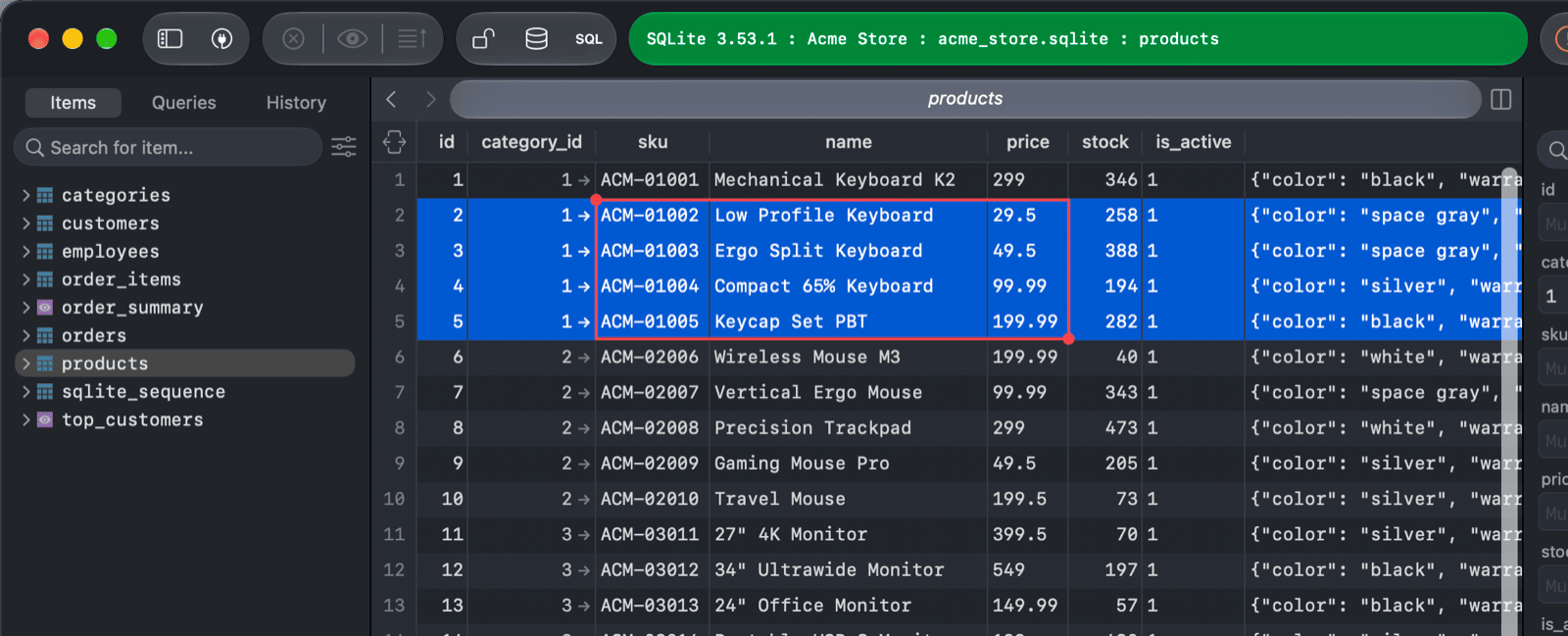
With a range of cells selected, you can:
- Copy only the selected cells with Copy Selected Cells (
⌘ + Shift + C). - Paste copied values into the selected cells with Paste to Selected Cells (
⌘ + Shift + V).
Sort rows
Click a column header to sort the table by that column:
- Click once to sort in descending order.
- Click again to sort in ascending order.
- Click a third time to remove the sort.
You can also right-click a column header and choose Sort Ascending, Sort Descending, or Remove sort. To sort by several columns, right-click each column header and choose Sort multiple Columns > Ascending or Descending.
Quick Look
Quick Look shows the value of a cell in a larger editor. It is helpful for long text, JSON, and binary values.
To open it, right-click the cell and choose Quick Look Editor, select the cell and press ⌘ + Return, or click the cell with the middle mouse button. See Quick Look.
Follow a foreign key
Cells in a foreign key column show an arrow. Click the arrow to open the referenced table, filtered to the referenced row.
Delete row
- Select one or more rows.
- Press
Delete, or right-click and choose Delete. - Press
⌘ + Sto commit the change.
Copy data
Right-click a cell to copy data from the table:
- Copy Rows (
⌘ + C): copy the selected rows. - Copy Rows As: copy the selected rows in another format.
- Copy Selected Cells (
⌘ + Shift + C): copy only the selected cells. - Copy Selected Cells As: copy the selected cells in another format.
- Copy All Column Values: copy every value of the clicked column.
The Copy Rows As and Copy Selected Cells As menus support these formats:
- Plain Text
- JSON
- HTML
- Markdown Table
- CSV
- CSV with Header
- INSERT Statement
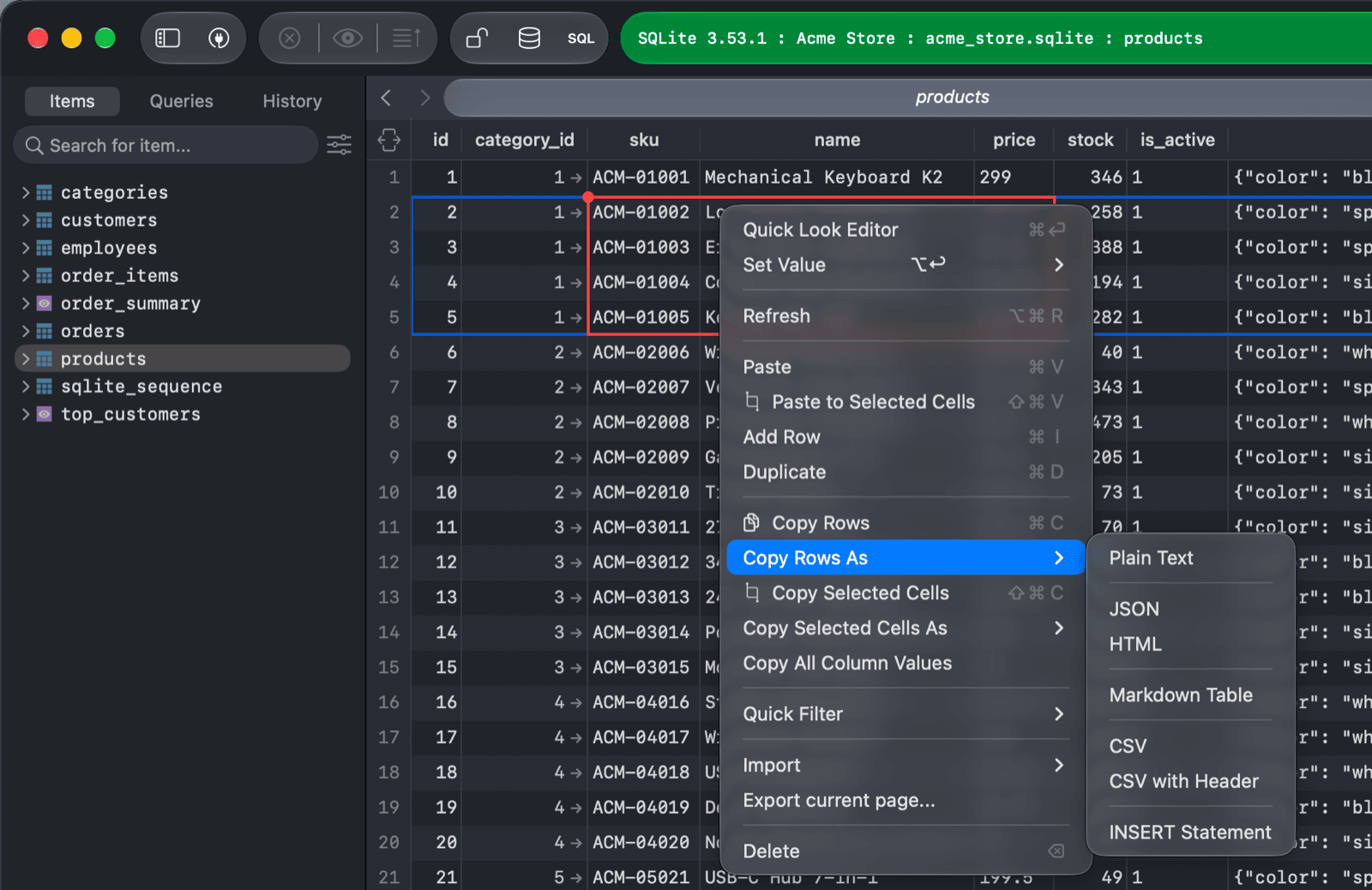
The same menu also lets you Refresh the data, Paste rows, start a Quick Filter from the clicked value (see Filter), Import data, and Export current page....
-
On Windows and Linux, use
Ctrl + S. ↩︎