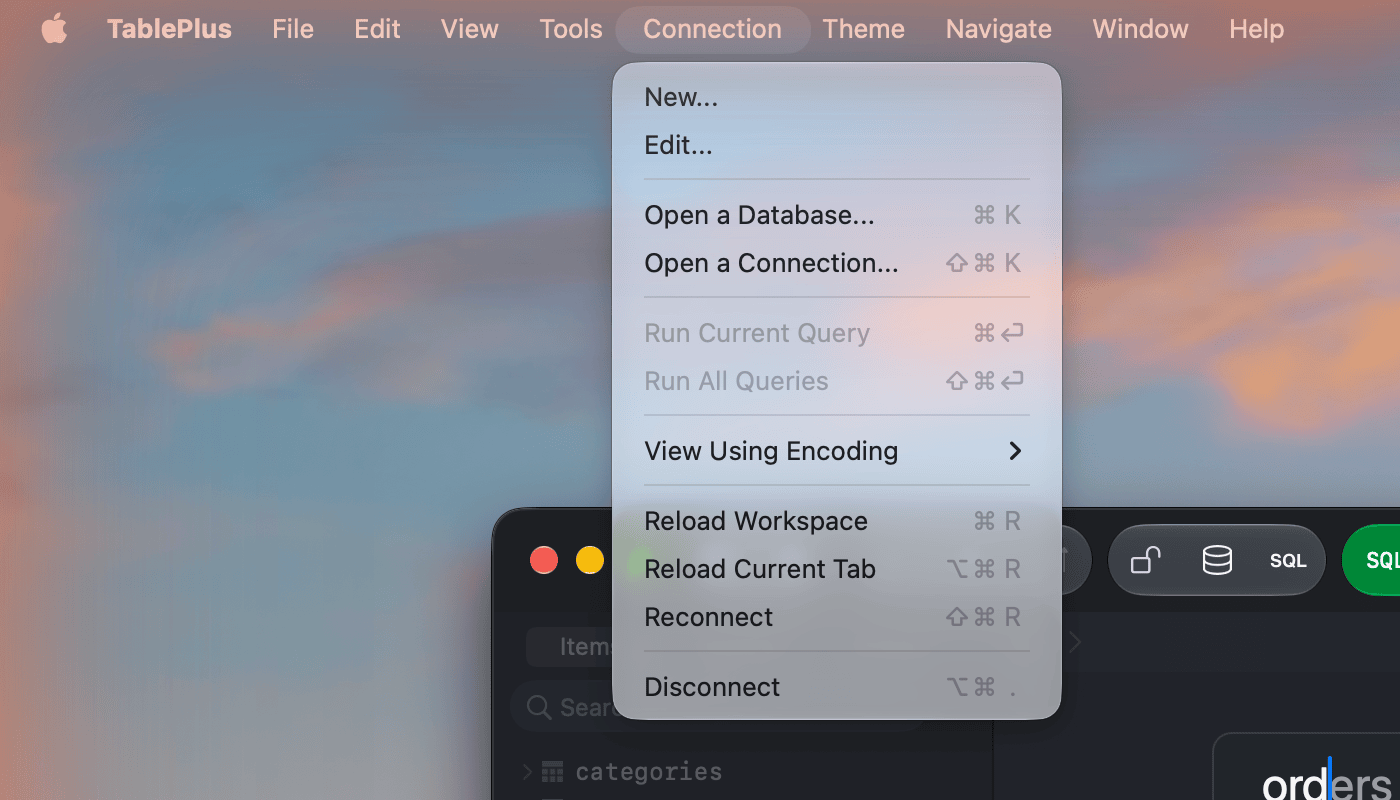
TablePlus uses the native macOS menu bar. It contains most of the commands that affect the interface and your data. The tables below list every menu and its default shortcut.1
The Connection menu
Some shortcuts can be changed in Settings > Keymap: select next/previous pane, tab, and workspace, toggle line/block comment, increase/decrease font size, show table data/structure, and run current/all queries. See Keymap.
TablePlus
Item
Shortcut
About TablePlus
Register license...
Check for Updates...
Settings… (Preferences… on macOS 12)
⌘ + ,
Services
Hide TablePlus
⌘ + H
Hide Others
⌥ + ⌘ + H
Show All
Quit TablePlus
⌘ + Q
File
Item
Shortcut
Open...
⌘ + O
Open Recent
Save As...
⌘ + Shift + S
New Workspace
⌘ + N
New SQL Viewer
⌘ + Shift + O
Backup...
Restore...
Export > Export Tables...
⌘ + Shift + E
Export > Export this Table with Column Selection...
Import > From CSV...
Import > From JSON...
Import > From SQL Dump...
Close
Edit
Item
Shortcut
Undo
⌘ + Z
Redo
⌘ + Shift + Z
Commit
⌘ + S
Discard
⌘ + Shift + Delete
Preview
⌘ + Shift + P
Add Row
⌘ + I
Duplicate Rows
⌘ + D
Cut
⌘ + X
Copy
⌘ + C
Copy Selected Cells
⌘ + Shift + C
Paste
⌘ + V
Paste to Selected Cells
⌘ + Shift + V
Select Word
Select all Words
⌃ + ⌘ + G
Delete
⌘ + Delete
Select All
⌘ + A
Toggle Line Comment
⌘ + /
Toggle Block Comment
⌥ + ⌘ + /
Increase Font Size
⌘ + =
Decrease Font Size
⌘ + -
Find > Find…
⌘ + F
Find > Find and Replace…
⌥ + ⌘ + F
Find > Find Next
⌘ + G
Find > Find Previous
⌘ + Shift + G
Find > Use Selection for Find
Find > Jump to Selection
⌘ + J
Find > Find Items in left sidebar...
⌘ + Shift + F
Transformations > Make Upper Case, Make Lower Case, Capitalize
The Theme menu lists the built-in themes and any themes you have installed, so you can switch themes in one click. It also has More themes, Import theme from Git…, Import themes from file or folder…, and Theme Settings.