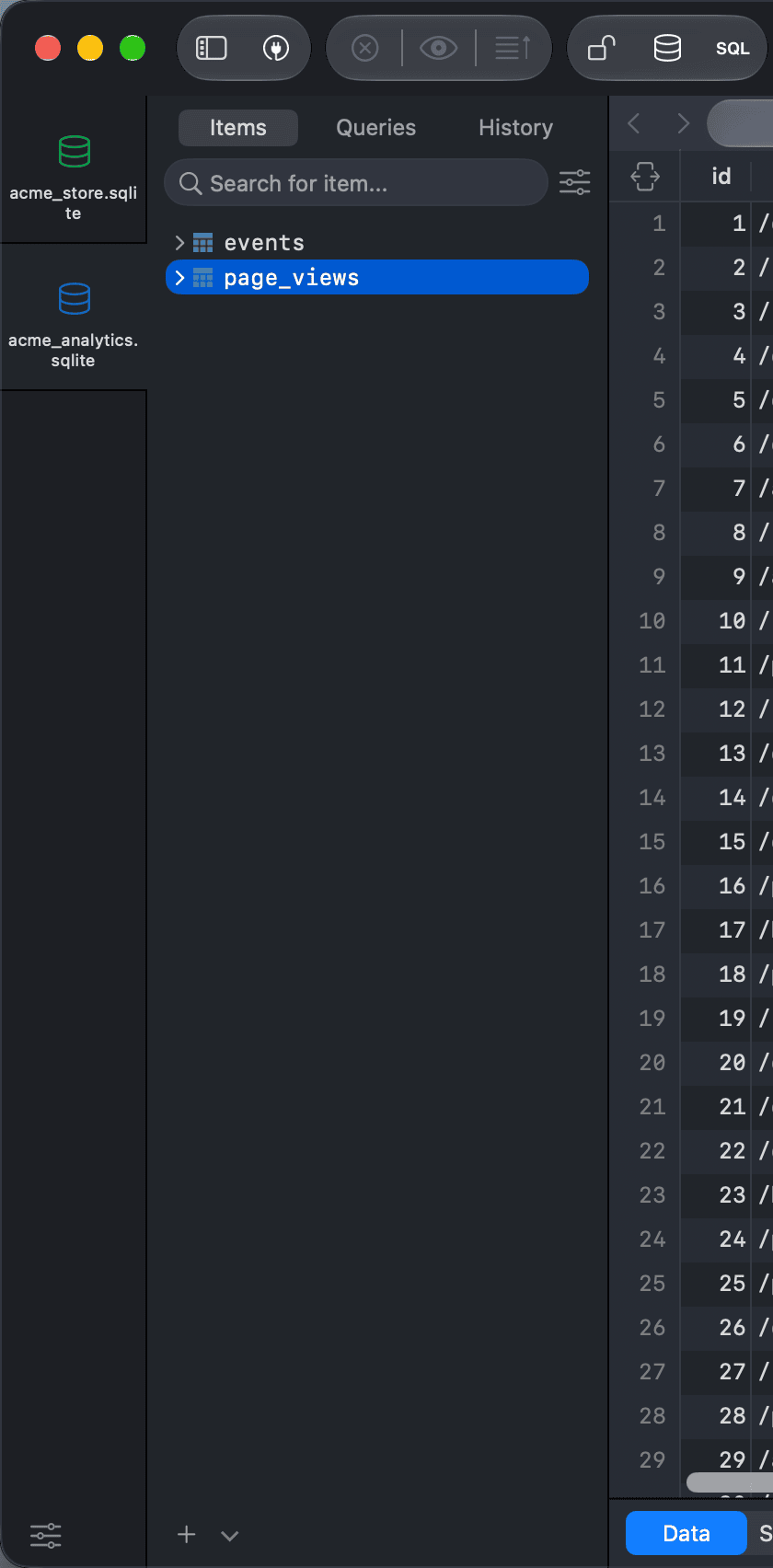
Left sidebar
The left sidebar lists the objects in the current database and your saved and past queries. Press ⌘ + 0 or click the Left button in the toolbar to show or hide it.
Items, Queries, and History
The three tabs at the top of the sidebar switch between:
- Items: the database objects, such as tables, views, functions, and procedures.
- Queries: your saved queries. See Query Favorite & Keyword Binding.
- History: the queries you have run. See Query History.
To open the connection or database list, or a new SQL Editor, use the Connection (⌘ + Shift + K), Database (⌘ + K), and SQL File (⌘ + E) buttons in the toolbar.
Search
Use the search box at the top of each tab to filter the list. Press ⌘ + Shift + F to jump to the search box of the tab you are on.
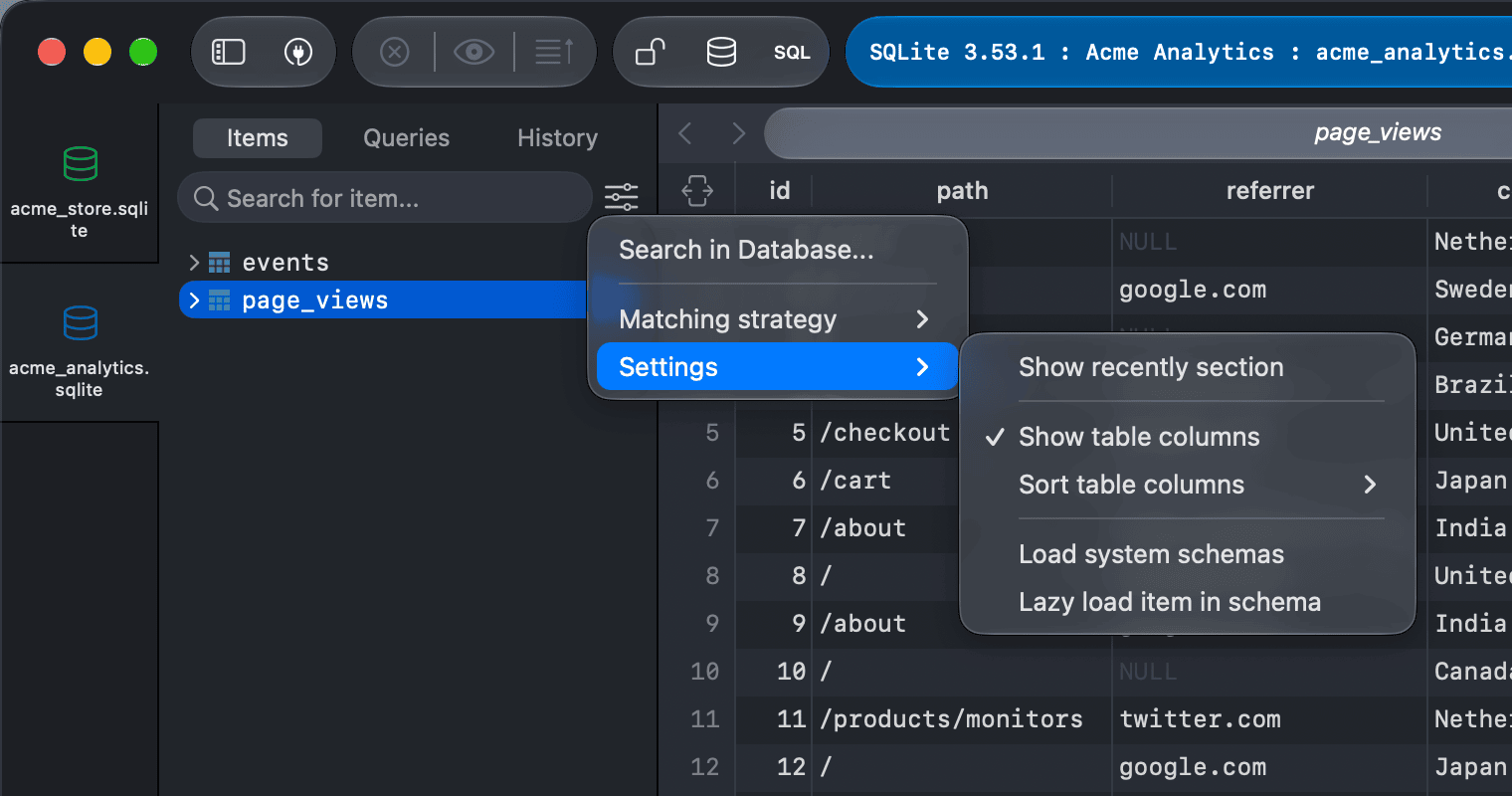
By default, the search uses fuzzy matching. To match only items that contain your keyword, click the settings button next to the search box and choose Matching strategy > Contains.
To search for a value in the data of the whole database, choose Search in Database... from the same menu, or from Tools > Search in Database....
Sidebar settings
Click the settings button next to the search box and open Settings to choose what the Items tab shows:
- Show recently section: show the items you opened recently in the current database.
- Show function section: show the functions and procedures.
- Show sequence section and Show user defined type section: show sequences and user-defined types, for databases that have them.
- Show table columns: list the columns under each table. Use Sort table columns to sort them A-Z or by Ordinal Position.
- Load system schemas: include system schemas, such as
information_schemaandpg_catalog, in the schema list. - Lazy load item in schema: load the items of a schema only when you open it.
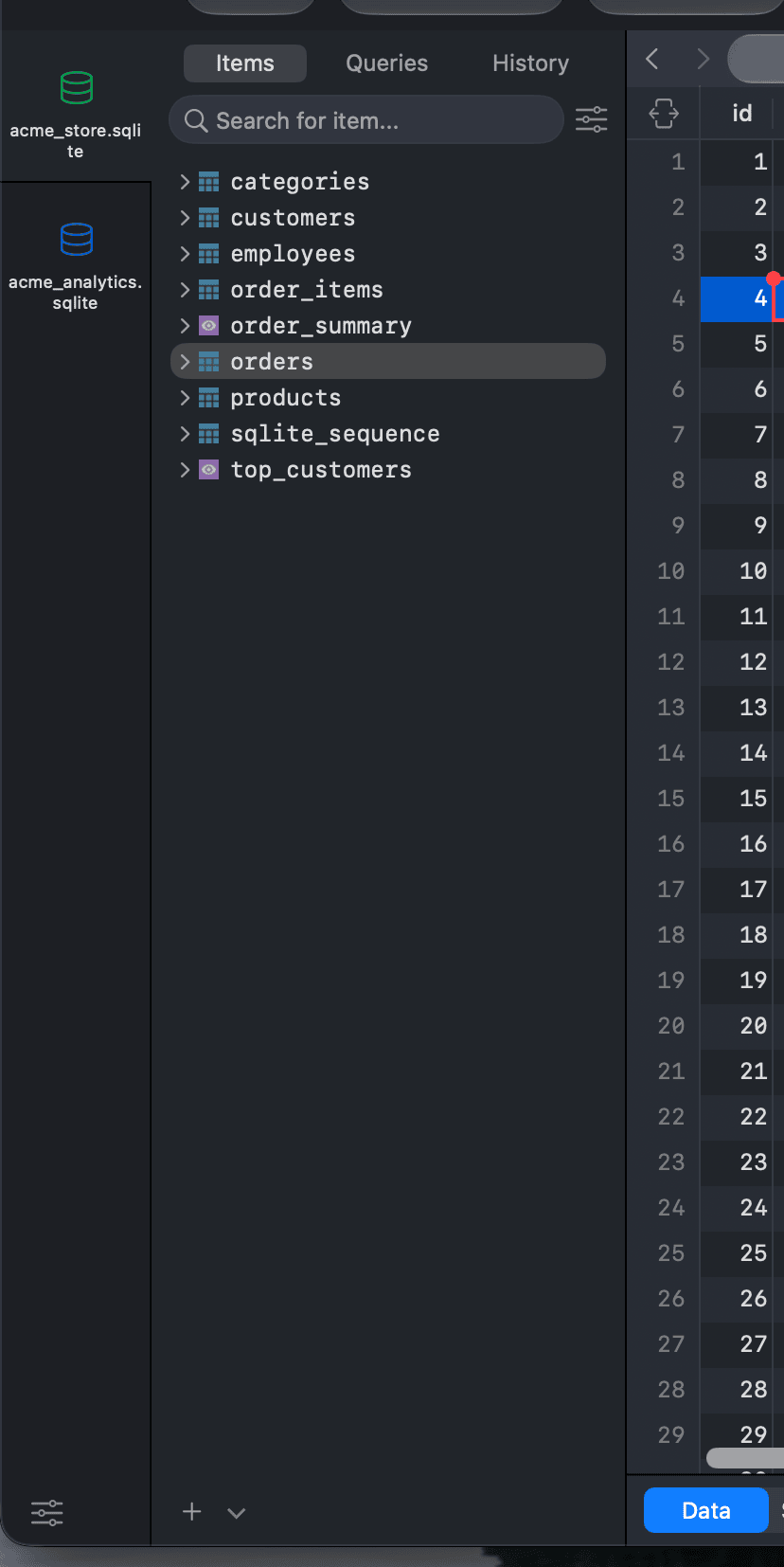
Schema and new items
At the bottom of the sidebar:
- The schema menu switches between the schemas of the database, for databases that support schemas.
- The + button creates a new table. Click its arrow to create a view, materialized view, function or procedure, schema, or a group of items.
Item actions
Right-click an item to open it in a new tab, open its structure, see an overview of the items, show the diagram, copy its name or a script (creation, drop, truncate, or select top 100), export or import data, and clone, truncate, or delete it.
Pin to top
Pin items you use often so they always stay at the top of the list.
- To pin, right-click a table, view, or function and choose Pin to top.
- To unpin, right-click the pinned item and choose Unpin from top.
Database stack
When you have more than one workspace open in the same window, TablePlus shows a narrow strip on the far left with an icon for each open database, so you can switch between them in one click.
To make it easier to tell them apart, click the settings button at the bottom of the strip and choose:
- Show database name
- Show connection name
Right-click a database in the strip to close it, close the other connections, or choose Move Tab to New Window.